One of the most common queries I used to get on my old blog was “how do I convert Hyper-V disks?”. Converting a VHD is easy enough. In the Hyper-V console you shut down the VM, edit the disk, select a location for the new VHD. Once that’s done you can rename the old disk and grant it’s old name to the new disk. Start up the VM and it’s using the new disk. Remember to remove the old disk to save disk space.
Before you even think about this you need to be sure you have enough space for the new disk of the desired type to be created. How much space will it need? Check how much data is on that disk (in the VM’s OS) and allow for another GB or two to be safe. This applies to both the Hyper-V console and VMM.
VMM is a bit more elegant. You shut down your VM, hopefully from the OS itself or via the IC’s, rather than just turn it off. Then you edit the properties of the VM and navigate to the disk in question.

Here I have opened up the VM that I wanted to work on and I’ve navigated to the disk in question. It’s a fixed VHD and I want to replace it with a dynamic VHD without losing my data. You can see in the right-hand side that there is a tick box to convert the disk. I ticked this and clicked on OK.
Notice that there is also a tick box for expand the VHD? That’s how we can grant more space to a VM. Remember to follow that up by running DISKPART in the VM to expand the volume. That’s nothing to do with the convert task but I thought I’d mention it.
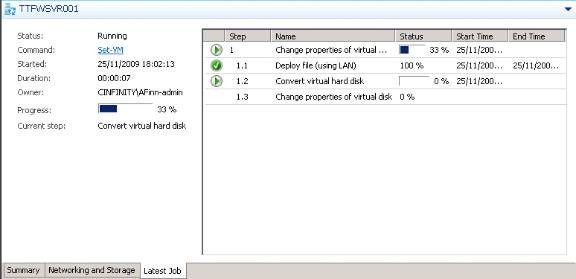
Once I clicked on OK the job runs. How long this will take depends on the amount of data we’re dealing with.
VMM is pretty clever here. It will convert the disk and then swap out the old disk with the new disk. The old disk is removed. This is a much less manual task than using the Hyper-V console.

Once the job is done you should check out your VM. You can see above that the disk is now a dynamic disk. And notice how much space I’ve saved? I’ve gone from 20GB down to 12.5GB. I’ve just saved my employer 40% of the cost to store that VM with a couple of mouse clicks while waiting for my dinner. That goes to back up my recent blog post about simpler and more cost effective storage. And like I said then, I’ve lost nothing in performance because I am running Windows Server 2008 R2.
Hey,
have you ever used this for Amazon web services disks? or what would you use?
have a disk from an Amazon server, used disk2vhd to vhd it.
Thanks
Col
I have not used AWS.
fyi
got it work with AWS, just needed to include the first boot system partition with doing disk2vhd.
then download, boot up in hyper-v, install integration services.
then you can upload this VHD to azure.