Using WS2012 R2 Hyper-V Storage QoS

Windows Server 2012 R2 Hyper-V brings us a new storage feature called Storage QoS.  You can optionally turn on quality of service management on selected virtual hard disks.  You then have two settings, both of which default to 0 (unmanaged):

  • Minimum: Unlike with networking QoS, this is the one you are least likely to use in WS2012 R2.  This is not a minimum guarantee, like you find with networking.  Instead, this setting is used more as an alerting system, in case a selected virtual hard disk cannot get enough IOPS.  You enter the number of IOPS required.
  • Maximum: Here you can specify the maximum number of IOPS that a virtual hard disk can use from the physical storage.  This is the setting you are most likely to use in Storage QoS in WS2012 R2, because it allows you to limit overly aggressive VM activity on your physical storage.

This is a feature of the host, so the guest OS is irrelevant.  The setting is there for VHD (which you should have stopped deploying) and VHDX (which you should be deploying).

What Storage QoS Looks Like

I’ve set up a test lab to demonstrate this.  A VM has 2 additional 10 GB fixed (for fair comparison) virtual hard disks in the same folder on the host.  I have formatted the drives as P and Q in the guest OS, and created empty files in each volume called testfile.dat.  I then downloaded and installed SQLIO into the guest OS of the VM.  This tool will let me stress/benchmark storage.  I started PerfMon on the host, and added the Read Operations/Sec metric from Hyper-V Virtual Storage Device for the 2 virtual hard disks in question.

image

I opened two command prompt windows and ran:

  • sqlio.exe -s1000 -t10 -o16 -b8 -frandom p:testfile.dat
  • sqlio.exe -s1000 -t10 -o16 -b8 -frandom q:testfile.dat

That gives me 1000 seconds of read activity from the P drive (first data virtual hard disk) and the Q drive (the second data virtual hard disk).  Immediately I saw that both virtual hard disk files had over 300 IOPS of read activity.

clip_image002

I then configured the second virtual hard disk (containing Q:) to be restricted to 50 IOPS.

clip_image004

There was a response in PerfMon before the settings screen could refresh after me clicking OK.  The read activity on the virtual hard disk dropped to around 50 (highlighted in black), usually under and sometimes creeping just over 50 (never for long before it was clawed back down by QoS).

clip_image006

The non-restricted virtual hard disk immediately benefited immediately from the available bandwidth, seeing it’s read IOPS increase (highlighted in black) remains on the ceiling but the metrics rise, now getting up to over 560 IOPS.

clip_image008

Usage of Storage QoS

I think this is going to be a weird woolly area.  The only best practice I know of is that you should know what you are doing first.  Few people understand (A) what IOPS is, and (B) how many IOPS their applications need.  This is why Microsoft added the Hyper-V metrics for measuring read and write operations per second of a virtual hard disk (see above).  This gives you the ability to gather information (I don’t know if a System Center Operations Manager management pack has been updated) and determine regular usage patterns.

Once you know what usage is expected then you could set limits to constrain that virtual hard disk from misbehaving.

I personally think that Storage QoS will be a reactionary measure for out-of-control virtual machines in traditional virtualization deployments and most private clouds.  However, those who are adopting the hands-off, self-service model of a true cloud (such as public cloud) may decide to limit every virtual hard disk by default.  Who knows!

Anyway, the feature is there, and be sure that you know what you’re doing if you decide to use it.

Putting The Scale Into The Scale-Out File Server

Why did Microsoft call the “highly file server for application data” the Scale-Out File Server (SOFS)?  The reason might not be obvious unless you have lots of equipment to play with … or you cheat by using WS2012 R2 Hyper-V Shared VHDX as I did on Tuesday afternoon Smile

The SOFS can scale out in 3 dimensions.

0: The Basic SOFS

Here we have a basic example of a SOFS that you should have seen blogged about over and over.  There are two cluster nodes.  Each node is connected to shared storage.  This can be any form of supported storage in WS2012/R2 Failover Clustering.

image

1: Scale Out The Storage

The likely bottleneck in the above example is the disk space.  We can scale that out by attaching the cluster nodes to additional storage.  Maybe we have more SANs to abstract behind SMB 3.0?  Maybe we want to add more JBODs to our storage pool, thus increasing capacity and allowing mirrored virtual disks to have JBOD fault tolerance.

image

I can provision more disks in the storage, add them to the cluster, and convert them into CSVs for storing the active/active SOFS file shares.

2: Scale Out The Servers

You’re really going to have to have a large environment to do this.  Think of the clustered nodes as SAN controllers.  How often do you see more than 2 controllers in a single SAN?  Yup, not very often (we’re excluding HP P4000 and similar cos it’s weird).

Adding servers gives us more network capacity for client (Hyper-V, SQL Server, IIS, etc) access to the SOFS, and more RAM capacity for caching.  WS2012 allows us to use 20% of RAM as CSV Cache and WS2012 R2 allows us to use a whopping 80%!

image

3: Scale Out Using Storage Bricks

GO back to the previous example.  There you saw a single Failover Cluster with 4 nodes, running the active/active SOFS cluster role.  That’s 2-4 nodes + storage.  Let’s call that a block, named Block A.  We can add more of these blocks … into the same cluster.  Think about that for a moment.

EDIT: When I wrote this article I referred to each unit of storage + servers as a block.  I checked with Claus Joergensen of Microsoft and the terms being used in Microsoft are storage bricks or storage scale units.  So wherever you see “block” swap in storage brick or storage scale unit.

image

I’ve built it and it’s simple.  Some of you will overthink this … as you are prone to do with SOFS.

What the SOFS does is abstract the fact that we have 2 blocks.  The client servers really don’t know; we just configure them to access a single namespace called \Demo-SOFS1 which is the CAP of the SOFS role.

The CSVs that live in Block A only live in Block A, and the CSVs that live in Block B only live in Block B.  The disks in the storage of Block A are only visible to the servers in Block A, and the same goes for Block B.  The SOFS just sorts out who is running what CSV and therefore knows where share responsibility is.  There is a single SOFS role in the entire cluster, therefore we have the single CAP and UNC namespace.  We create the shares in Block A in the same place as we create them for Block B .. in that same single SOFS role.

A Real World Example

I don’t have enough machinery to demo/test this so I fired up a bunch of VMs on WS2012 R2 Hyper-V to give it a go:

  • Test-SOFS1: Node 1 of Block A
  • Test-SOFS2: Node 2 of Block A
  • Test-SOFS3: Node 1 of Block B
  • Test-SOFS4: Node 2 of Block B

All 4 VMs are in a single guest cluster.  There are 3 shared VHDX files:

  • BlockA-Disk1: The disk that will store CSV1 for Block A, attached to Test-SOFS1 + Test-SOFS2
  • BlockB-Disk1: The disk that will store CSV1 for Block B, attached to Test-SOFS3 + Test-SOFS4
  • Witness Disk: The single witness disk for the guest cluster, attached to all VMs in the guest cluster

Here are the 4 nodes in the single cluster that make up my logical Blocks A (1 + 2) and B (3 + 4).  There is no “block definition” in the cluster; it’s purely an architectural concept.  I don’t even know if MSFT has a name for it.

image

Here are the single witness disk and CSVs of each block:

image

Here is the single active/active SOFS role that spans both blocks A and B.  You can also see the shares that reside in the SOFS, one on the CSV in Block A and the other in the CSV in Block B.

image

And finally, here is the end result; the shares from both logical blocks in the cluster, residing in the single UNC namespace:

image

It’s quite a cool solution.

Re-launched My Photography Website

I recently moved aidanfinn.com onto a dedicated virtual machine (running WS2012 of course) to handle the web traffic that was coming in.  I decided to make the use of that capacity by moving my photography site, aidanfinnphoto.com from a Clikpic subscription to the virtual machine.  This also gave me an opportunity to do quite a bit of work on the out-dated and neglected photo galleries, and forces me to keep up with IIS Smile

The new site, based on WordPress, is now up and running.  I’ve got the expected photo galleries there and I’ve also started posting some stuff in a blog.

Windows Server 2012 R2 Has RTMd

Brad Anderson has announced that Windows Server 2012 R2 has been released to manufacturing.  He also stated:

Also of note: The next update to Windows Intune will be available at the time of GA, and we are also on track to deliver System Center 2012 R2.

The release of Windows Server 2012 R2 is set to happen on October 18th.

I’ve documented quite a few of the features related to Hyper-V in this new release.  There are some things I’ve not had time to add yet:

  • SMB 3.0/SOFS/Storage Spaces
  • Clustering
  • And a few other things where I’m unsure about the NDA

There is quite a bit of change in this release and plenty for you to digest.

Storage Spaces & Scale-Out File Server Are Two Different Things

In the past few months it’s become clear to me that people are confusing Storage Spaces and Scale-Out File Server (SOFS).  They seem to incorrectly think that one requires the other or that the terms are interchangeable.  I want to make this clear:

Storage Spaces and Scale-Out File Server are completely different features and do not require each other.


Storage Spaces

The concept of Storage Spaces is simple: you take a JBOD (a bunch of disks with no RAID) and unify them into a single block of management called a Storage Pool.  From this pool you create Virtual Disks.  Each Virtual Disk can be simple (no fault tolerance), mirrored (2-way or 3-way), or parity (like RAID 5 in concept).  The type of Virtual Disk fault tolerance dictates how the slabs (chunks) of each Virtual Disk are spread across the physical disks included in the pool.  This is similar to how LUNs are created and protected in a SAN.  And yes, a Virtual Disk can be spread across 2, 3+ JBODs.

Note: In WS2012 you only get JBOD tray fault tolerance via 3 JBOD trays.

Storage Spaces can be used as the shared storage of a cluster (note that I did not limit this to a SOFS cluster).  For example, 2 or more (check JBOD vendor) servers are connected to a JBOD tray via SAS cables (2 per server with MPIO) instead of connecting the servers to a SAN.  Storage Spaces is managed via the Failover Cluster Manager console.  Now you have the shared storage requirement of a cluster, such as a Hyper-V cluster or a cluster running the SOFS role.

Yes, the servers in the cluster can be your Hyper-V hosts in a small environment.  No, there is no SMB 3.0 or file shares in that configuration.  Stop over thinking things – all you need to do is provide shared storage and convert it into CSV that is used as normal by Hyper-V.  It is really that simple. 

Yes, JBOD + Storage Spaces can be used in a SOFS as the shared storage.  In that case, the virtual disks are active on each cluster node, and converted into CSVs.  Shares are created on the CSVs, and application servers access the shares via SMB 3.0.

Scale-Out File Server (SOFS)

The SOFS is actually an active/active role that runs on a cluster.  The cluster has shared storage between the cluster nodes.  Disks are provisioned on the shared storage, made available to each cluster node, added to the cluster, and converted into CSVs.  Shares are then created on the CSV and are made active/active on each cluster node via the active/active SOFS cluster role. 

SOFS is for application servers only.  For example Hyper-V can store the VM files (config, VHD/X, etc) on the SMB 3.0 file shares.  SOFS is not for end user shares; instead use virtual file servers that are stored on the SOFS.

Nowhere in this description of a SOFS have I mentioned Storage Spaces.  The storage requirement of a SOFS is cluster supported storage.  That includes:

  • SAS SAN
  • iSCSI SAN
  • Fibre Channel SAN
  • FCoE SAN
  • PCI RAID (like the Dell VRTX)
  • … and SAS attached shared JBOD + Storage Spaces

Note that I only mentioned Storage Spaces with the JBOD option.  Each of the other storage options for a cluster uses hardware RAID and therefore Storage Spaces is unsupported.

Summary

Storage Spaces works with a JBOD to provide a hardware RAID alternative.  Storage Spaces on a shared JBOD can be used as cluster storage.  This could be a small Hyper-V cluster or it could be a cluster running the active/active SOFS role.

A SOFS is an alternative way of presenting active/active storage to application servers. It requires cluster supported storage, which can be a shared JBOD + Storage Spaces.

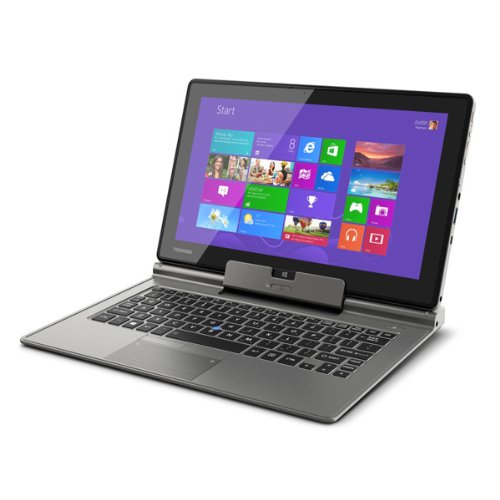
Toshiba Z10t – A Windows 8 Tablet/Convertible Ultrabook For The Business User

It wasn’t until I saw the spec of the new Toshiba Z10t that I realised all of the pro-style Windows 8 tablets were missing something: an RJ45 port that supports PXE boot.  Without it, how exactly are you going to deploy a Windows image to the PC over a PXE (network) boot?

A few months ago we saw the first photos and specs of the Toshiba Z10T, which they are sensibly describing as a convertible ultrabook.  Sure, a “tablet”, that is similar to the Surface Pro and others, undocks from the keyboard and it features a stylus (on select models) and multitouch and all that jazz that you expect.  However, calling something that costs $1000 or more a tablet and then expecting it to compete against $300 offerings from Samsung and the rest … that’s just insanity as we all now know.

The device has all the usual features on the “tablet” and features full sized HDMI (hallelujah!) on the keyboard as well as an RJ45 network port.  I got my hands on one for a few seconds today, booted it into the settings, and a LAN boot was one of the options, OSD fans will be happy to hear.

The model I played with was an i5, with 4 GB RAM and 128 of storage, and 1920 x 1080 screen resolution.  Typing enthusiasts: there is a backlit keyboard.  Like the Surface Pro, the battery is on the lighter side supporting just over 5 hours; it does not have a Haswell CPU.  There are USB 3.0 and SD (full) card slots.  Presentation fans: there is a real VGA port so no more dongles that work 50% of the time in hotel meeting rooms.

The machine is not going to win <insert country here> Top Model.  It is not pretty.  But this is a tool designed to do a job.  The material on the back is a tough textured plastic.  It’s feels like it will last over time.

This is an ultrabook first, tablet second.  It’s intended to be a replacement device and not a companion device. This is the machine you use at your desk, on the road, and for presentations.  There is also an i7 model.  These machines are not cheap.  They’re not to be confused with consumer machines; they are business machines, in my opinion.

Configuring Quorum on Storage Spaces For A 2 Node WS2012 (and WS2012 R2) Cluster

In this post I’m going to talk about building a 2 node Windows Server 2012/R2 failover cluster and what type of witness configuration to choose to achieve cluster quorum when the cluster’s storage is a JBOD with Storage Spaces.

I’ve been messing about in the lab with a WS2012 R2 cluster, in particular, a Scale-Out File Server (SOFS) running on a failover cluster with Storage Spaces on a JBOD.  What I’m discussing applies equally to:

  • A Hyper-V cluster that uses a SAS attached JBOD with Storage Spaces as the cluster storage
  • A SOFS based on a JBOD with Storage Spaces

Consider the build process of this 2 node cluster:

  • You attach a JBOD with raw disks to each cluster member
  • You build the cluster
  • You prepare Storage Spaces in the cluster and create your virtual disks

Hmm, no witness was created to break the vote and get an uneven result.  In fact, what happens is that the cluster will rig the vote to ensure that there is an uneven result.  If you’ve got 2 just nodes in the cluster with no witness then one has a quorum vote and the other doesn’t.  Imagine Node1 has a vote and Node2 does not have a vote.  Now Node1 goes offline for whatever reason.  Node2 does not have a vote and cannot achieve quorum; you don’t have a cluster until Node1 comes back online.

There are 2 simple solutions to this:

1) Create A File Share Witness

Create a file share on another highly available file server – uh … that’ll be an issue for small/medium business because all the virtual machines (including the file server) were going to be stored on the JBOD/Storage Spaces.  You can configure the file share as a witness for the cluster.

2) (More realistically) Create a Storage Spaces Virtual Disk As A Witness Disk

Create a small virtual disk (2-way or 3-way mirror for JBOD fault tolerance) and use that disk for quorum as the witness disk.  A 1 GB disk will do; the smallest my Storage Spaces implementation would do was 5 GB but that’s such a small amount anyway.  This solution is pretty what you’d do in a single site cluster with traditional block storage.

We could go crazy talking about quorum options in cluster engineering.  I’ve given you 2 simple options, with the virtual disk as a witness being the simplest.  Now each node has a vote for quorum with a witness to break the vote, and the cluster can survive either node failing.

The Shareholders React To Microsoft’s Steve Ballmer’s Retirement Plans

I saw the tweet first from Paul Thurrott and Mary Jo Foley was next.  According to a Microsoft press release:

Microsoft Corp. today announced that Chief Executive Officer Steve Ballmer has decided to retire as CEO within the next 12 months, upon the completion of a process to choose his successor.


Let’s give Ballmer some credit before I stick a stake in him.  He managed Microsoft through a very difficult post-Gates era.  It’s never easy to play Steve Young to Joe Montana (to follow a legend), as Tim Cook is finding out.  Add on top of that the DOJ trying to force your company to split up and the EU suing you over everything your predecessor decided.  Then there was Vista … and the excellent Windows 7 was produced.  Microsoft’s cloud services have, after a ropey start on BPOS/Office 365 (the licensing model was changed to suit the partners that sell/implement this stuff) and Azure (they finally gave us the infrastructure services people want instead of PaaS), started to take off, joined hand-in-hand with on-premises infrastructure.  In the enterprise, SQL now fights fair against Oracle.  Hyper-V squares up against VMware.  And an enterprise management/cloud solution was grown to a mature and scalable level from nothing.  And we cannot forget that the company has diversified to have over a dozen $1 billion businesses.

But then the devices debacle happened (or didn’t).  Surfaces that no one wanted were produced, shelved, and discounted for nearly $1 billion.  The Windows 8 GUI remained unchanged for nearly a year despite overwhelmingly negative criticism, while Ballmer pulled a 3 wise monkeys.  And I have mentioned some quality issues, which need some correction from the top-down.

This retirement is a very good thing in my opinion.  Certain things have been worrying me about Microsoft in the last few years.  Several years ago I blogged that Ballmer needed to take heat over the lack of a Windows tablet – I was even on the “put Windows Phone on a tablet” band wagon.

The share holders agree: Business Insider reported (at the time of writing) that:

And the stock is surging, up over 8% pre-market.

A camp of shareholders have been quite vocal about trying to get rid of Steve Ballmer.

Timing-wise: Windows 8.1, System Center 2012 R2, and Windows Server 2012 R2 are as much as done with the release date on Oct 17th/18th, depending on product and your time zone.  Microsoft should have held off on the announcement for another few days (maybe there was a leak that accelerated things?) because they could have completely stolen the thunder of VMworld next week.  My prediction is that Steve Ballmer will step down at WPC 2014, handing over the mic to his successor.

Speaking of which

The Board of Directors has appointed a special committee to direct the process. This committee is chaired by John Thompson, the board’s lead independent director, and includes Chairman of the Board Bill Gates, Chairman of the Audit Committee Chuck Noski and Chairman of the Compensation Committee Steve Luczo. The special committee is working with Heidrick & Struggles International Inc., a leading executive recruiting firm, and will consider both external and internal candidates.

“The board is committed to the effective transformation of Microsoft to a successful devices and services company,” Thompson said. “As this work continues, we are focused on selecting a new CEO to work with the company’s senior leadership team to chart the company’s course and execute on it in a highly competitive industry.”

“As a member of the succession planning committee, I’ll work closely with the other members of the board to identify a great new CEO,” said Gates. “We’re fortunate to have Steve in his role until the new CEO assumes these duties.”

My preference would be someone who spans marketing and technology.  It’s time to polish the rough edges from consumer products.  I’m not talking a MSFT marketing person who plans bad advertising campaigns.  A person who understands the desires of the customer is required.  The heart and the genius of Microsoft are the technologists that drive product.  That must be continued to be nurtured and wrapped in the fine veneer that a consumer expects, and partnered with quality control.  I really really home that we’re not going to see Julie Larson Green in job in a years time.

And that’s the news from a damp Friday afternoon in Dublin, which is probably the same in Redmond Smile


Technorati Tags:

WS2012 Hyper-V Networking On HP Proliant Blades Using Just 2 Flex Fabric Virtual Connects

On another recent outing I got to play with some Gen8 HP blade servers.  I was asked to come up with a networking design where (please bear in mind that I am not a h/w guy):

  • The blades would have a dual port 10 Gbps mezzanine card that appeared to be doing FCoE
  • There were 2 Flex Fabric virtual connects in the blade chassis
  • They wanted to build a WS2012 Hyper-V cluster using fiber channel storage

I came up with the following design:

The 2 FCoE (I’m guess that’s what they were) adapters were each given a static 4 Gbps slice of the bandwidth from each Virtual Connect (2 * 4 Gbps), which would match 4 Gbps Fiber Channel (FC).  MPIO was deployed to “team” the FC HBA’s.

One Ethernet NIC was presented from each Virtual Connect to each blade (2 per blade), with each NIC getting 6 Gbps.  WS2012 NIC teaming was used to team these NICs, and then we deployed a converged networks design in WS2012 using virtual NICs and QoS to dynamically carve up the bandwidth of the virtual switch (attached to the NIC team).

Some testing was done and we were running Live Migration at a full 6 Gbps, moving a 35 GB RAM VM via TCP/IP Live Migration in 1 minute and 8 seconds.

For WS2012 R2, I’d rather have 2 * 10 GbE for the 2 cluster & backup networks and 2 * 1 or 10 GbE for the management and VM network.  If the VC allowed it (didn’t have the time), I might have tried the below.  This would reduce the demands on the NIC team (actual VM traffic is usually light, but assessment is required to determine that) and allow an additional 2 non-teamed NICs:

Leaving the 2 new NICs (running at 4 Gbps) non-teamed leaves open the option of using SMB 3.0 storage (without RDMA/SMB Direct) on a Scale-Out File Server.  However, the big plus of SMB 3.0 Multichannel would be that I would now have a potential 8 Gbps to use for Live Migration via SMB 3.0 Open-mouthed smile But this is assuming that I could carve up the networking like this via Virtual Connects … and I don’t know if that is actually possible.

ODX–Not All SANs Are Created Equally

I recently got to play with a very expensive fiber channel SAN for the first time in a while (I normally only see iSCSI or SAS in the real world).  This was a chance to play with WS2012 Hyper-V on this SAN, and this SAN supported Offloaded Data Transfer (ODX).

Put simply, ODX is a SAN feature that allows Windows to offload certain file operations to the SAN, such as:

  • Server to server file transfer/copy
  • Creating a VHD file

That latter was of interest to me, because this should accelerate the creation of a fixed VHD/X file, making (self-service) clouds more responsive.

The hosts were fully patched, both hotfixes and update rollups.  Yes, that includes the ODX hotfix that is bundled into the May clustering bundle.  We created a 60 GB fixed size VHDX file … and it took as long as it would without ODX.  I was afraid of this.  The manufacturer of this particular SAN has … a certain reputation for being stuck in the time dilation of an IT black hole since 2009.

If you’re planning on making use of ODX then you need to understand that this isn’t like making a jump from 1 Gbps to 10 Gbps where there’s a predictable 10x improvement.  Far from it; the performance of ODX on one vendors top end SAN can be very different to that of another manufacturer.  Two of my fellow Hyper-V MVPs have done a good bit of work looking into this stuff.

Hans Vredevoort (@hvredevoort) tested the HP 3PAR P10000 V400 with HP 3PAR OS v3.1.2.  With ODX enabled (it is by default on the SAN and WS2012) when creating a pretty regular 50 GB VHDX Hans saw the time go from an unenhanced 6.5 minutes to 2.5 minutes.  On the other hand, a 1 TB VHDX would take 33 minutes with ODX enabled.

Didier Van Hoye (@workinghardinit) decided to experiment with his Dell Compellent.  Didier created 10 * 50 GB VHDX files and 10 * 475 GB fixed VHDX files in 42 seconds.  That was 5.12 TB of files created nearly 2 minutes faster than the 3PAR could create a single 50 GB VHDX file.  Didier has understandably gone on a video recording craze showing off how this stuff works.  Here is his latest.  Clearly, the Compellent rocks where others waltz.

These comparisons reaffirm what you should probably know: don’t trust the whitepapers, brochures, or sales-speak from a manufacturer.  Evidently not all features are created equally.