What Windows Server 2012 and Hyper-V Are Called

There are no such things as:

  • W2012
  • Windows Server 8.  That was the old codename before the official title was announced.
  • Hyper-V v3.0
  • Hyper-V R3

The name of the server is Windows Server 2012.  The short for that is WS2012.

The name of the hypervisor is Windows Server 2012 Hyper-V.  The short for that is WS2012 Hyper-V.  There is also the free download, called Hyper-V Server 2012.

Hyper-V is available on Windows 8 Pro and Enterprise.  It’s official name is Windows 8 Client Hyper-V.

WS2012 Hyper-V – Supported Guest Operating Systems

This page is out of date. You can find more up to date post here.

The list of supported guest OSs from TechNet for WS2012 Hyper-V is listed below.  If this is like W2008 R2, the TechNet list will remain static while the actual supported list will be accurately reflected on TechNet Wiki.

Guest Operating System (Server) Notes
Windows Server 2012 Integration services do not require a separate installation because they are built-in.
Windows Server 2008 R2 with Service Pack 1 (SP 1) Datacenter, Enterprise, Standard and Web editions. Install the integration services after you set up the operating system in the virtual machine.
Windows Server 2008 R2 Datacenter, Enterprise, Standard and Web editions. Upgrade the integration services after you set up the operating system in the virtual machine.
Windows Server 2008 with Service Pack 2 (SP 2) Datacenter, Enterprise, Standard and Web editions (32-bit and 64-bit). Install the integration services after you set up the operating system in the virtual machine.
Windows Server 2008 Datacenter, Enterprise, Standard and Web editions (32-bit and 64-bit). Install the integration services after you set up the operating system in the virtual machine.
Windows Home Server 2011 Edition information is not applicable. Install the integration services after you set up the operating system in the virtual machine.
Windows Small Business Server 2011 Essentials and Standard editions. Install the integration services after you set up the operating system in the virtual machine.
Windows Server 2003 R2 with Service Pack 2 (SP2) Standard, Web, Enterprise, and Datacenter editions (32-bit and 64-bit). Install the integration services after you set up the operating system in the virtual machine.
Windows Server 2003 with Service Pack 2 Standard, Web, Enterprise, and Datacenter editions (32-bit and 64-bit). Install the integration services after you set up the operating system in the virtual machine.
CentOS 6.0 – 6.2 Download and install Linux Integration Services v3.3.
Red Hat Enterprise Linux 6.0 –6.2 Download and install Linux Integration Services v3.3.
SUSE Linux Enterprise Server 11 SP2 Integration services do not require a separate installation because they are built-in.

Note: The TechNet article indicates you should use Linux Integration Services v3.2 but they have been superseded by v3.3.

And for the client operating systems (VDI):

Guest Operating System (Client) Notes
Windows 8 Release Preview Integration services do not require a separate installation because they are built-in.
Windows 7 with Service Pack 1 (SP 1) Ultimate and Enterprise editions (32-bit and 64-bit). Upgrade the integration services after you set up the operating system in the virtual machine.
Windows 7 Ultimate and Enterprise editions (32-bit and 64-bit). Upgrade the integration services after you set up the operating system in the virtual machine.
Windows Vista with Service Pack 2 (SP2) Business, Enterprise, and Ultimate, including N and KN editions. Install the integration services after you set up the operating system in the virtual machine.
Windows XP with Service Pack 3 (SP3) Professional. Install the integration services after you set up the operating system in the virtual machine.
Windows XP x64 Edition with Service Pack 2 (SP 2) Professional. Install the integration services after you set up the operating system in the virtual machine.

Remember that even built-in integration services will have to be upgraded at a later time, e.g. for WS2012 Service Pack 1 if/when it comes out.

New Ways To Touch Windows 8 – The Microsoft Touch Mouse

Lots of people have been debating whether the Metro UI of Windows 8 can succeed on normal laptops and PCs without touch screens. Yesterday I blogged about a Logitech Wireless Touchpad that’s been around for a while.  I was talking about that at work today when one of our Apple folks told me to come back when Windows was doing something new Smile

This afternoon Brandon LeBlanc of Microsoft blogged about a series of new designed-for-Windows 8 keyboards and mice that are being launched by Microsoft … the day after I plonked down cash for a new 3000 series keyboard and mouse.  Paul Thurrot also covered the story this morning (before the Microsoft blog post) of the new devices.

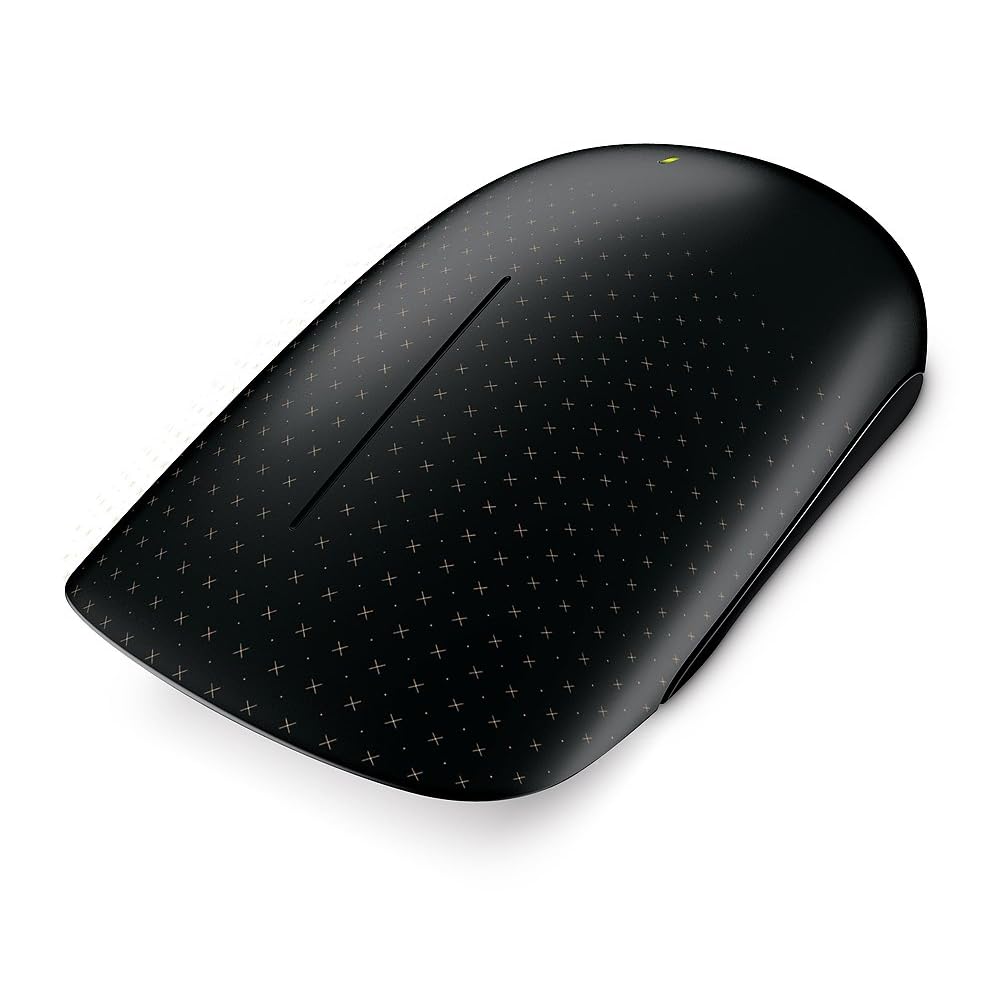
I personally cannot stand the look of the new wedge touch mouse. But there is a 50/50 pro/anti split in the guys who deal with consumer hardware in our office.  This is no normal mouse.  Besides looking weird, it offers touch and gesture support for Windows 8.  I guess the unusual flat surface is to assist in the touch experience.

The Wedge is not out yet, but the Microsoft Touch Mouse is, and I have one on my desk at the moment. One of the guys just gave it to me to play with.  Unlike the newly announced keyboards and mice, this one does use a dongle to connect to the computer.

The mouse has touch sensors all over the front of it. The sensors support multitouch.  The mouse also uses the bluetrack motion sensor to work on “any surface”. Right now, the only gesture stuff I got when I connected the mouse to Windows 8 was the scroll wheel action.  But that is changing according to Engadget.  You’ll basically get gestures for app switching, charms, scroll, and Semantic Zoom.  The mouse will be updated when Windows 8 “goes on sale”, so I guess that’ll happen on or after October 26th.  I’m looking forward to trying the update out when it is released!

EDIT#1

I downloaded a software update for the Microsoft Touch Mouse on Windows 8 x64.  It made the touch UI smoother and added the current set of Windows 7 gestures with thumb, one finger, two fingers, and three fingers. This will be updated at when Windows 8 is out for Windows 8 gestures.

Technorati Tags: ,

WS2012 Hyper-V – What You Can Install On The Management OS

The Performance Tuning Guidelines for Windows Server 2012 document is available and I’m reviewing and commenting on notable text in it.

The recommendation stays the same. A Hyper-V host is a Hyper-V host, and should not be a domain controller, file server, backup server, DNS server, database server, SBS, etc.  Don’t try to get clever with your language – you might think you can out-manoeuvre this but all you’re doing is being stupid and putting your employer/customer(s) at risk.

System administrators should consider carefully what software is installed in the root partition because some software can adversely affect the overall performance of the virtualization server.

The support folks word this more strongly, as they should. Would you really try to install Apache or MySQL on a VMware host (if you could)? And if you wanted to, then you shouldn’t be working in IT, in my opinion.

Logitech Touchpad with Windows 8?

Windows 8 was designed to be touch first but you can use it with a keyboard and a mouse.  I do that with my work laptop, the beast, which I use to run Windows 8 Client Hyper-V for deployment demos because it has SSD storage.  But what if you want that touch experience?  Some apps, certainly games (Cut the Rope, Angry Birds) work best with a touch UI.  You could go out and buy a replacement monitor for you PC.  You could replace your laptop.  Or you could go the Apple route and copy what they did for the Mac a while back when they introduced the pricey track pad.

I was just in the store picking up a new keyboard and mouse for some writing work (the real thing always beats a laptop keyboard/pad) and I saw something interesting on a display stand:

image

This is the Logitech Wireless Touchpad with Multitouch, coming in at $32.57 on Amazon.com.  It supports single, double, triple and quad touch as well as swipe.  Locally it was €49.99 in a brick store.  I very nearly picked one up but I was concerned that it might not be a great Windows 8 device; I’ve seen some people having Synaptic driver issues on forums with gesture support on their laptops.  I did a quick search on my iPhone but found nothing conclusive so I left it there.

I returned home but didn’t forget it.  I did some more searching and found one very happy reviewer.  Maybe I’ll get one for the work PC which I’m very likely to upgrade as soon as possible after RTM.

That reminds me.  I love to see what’s happening in the PC world, especially to the all-in-ones.  If I was buying a personal PC then that’s the type I’d want for Windows 8.  I saw a very sexy looking Lenovo IdeaCenter A720.

IdeaCentre A720

It is around $1700 in the USA and €1200 here.  It features a 27 inch 1920×1080 anti-glare 10-touch point screen with a flush bezel.  The spec is i7 (3rd generation), 8 GB RAM, 2 GB NVIDIA GPU.  It was a work of art in my opinion; I’d be happy for it to be placed in my sitting room.

Technorati Tags: ,

Windows Server 2012 (Hyper-V) Core Installation

The Performance Tuning Guidelines for Windows Server 2012 document is available and I’m reviewing and commenting on notable text in it.

On the subject of a Core installation of Windows Server 2012, the document says:

It features a smaller disk, memory profile, and attack surface. Therefore, we highly recommend that Hyper-V virtualization servers use the Server Core installation option. Using Server Core in the root partition leaves additional memory for the virtual machines to use (approximately 80 MB for the commit charge on a 64-bit edition of the Windows Server operating system).

You’ll save a couple of GB on disk space. When I’m able to buy disks smaller than 300 GB for my hosts I’ll care about this. Smaller disks are price listed, but my experience is that you’ll wait 3 months for them.

I don’t care about saving 80 MB of RAM on hosts with 48 GB, 192 GB, 256 GB, or 4 TB of RAM.

The other pro-Core argument is the number of security patches. I don’t care if I have 1 or 12 patches to install per month. I care about how many reboots I have to do; 1 patch = 1 reboot, 20 patches = 1 reboot. And on reboots, Cluster Aware Updating orchestrates that so I have no service downtime.

I care about easy administration. When there is a problem, I don’t want to be googling PowerShell. I sure as hell don’t want a junior operator/engineer to be searching the net for PowerShell alternatives to tasks that are quick/easy in the GUI. And until the h/w vendors have given us easy/complete non-GUI options for hardware management/troubleshooting, the Full installation is my recommendation, despite what Redmond says.

Microsoft’s recommendation remains unchanged from W2008 and W2008 R2. The Great Big Hyper-V Survey of 2011 shows only a very small percentage of you agreed to follow Microsoft’s advice on Core in the past.  One thing has changed in WS2012.

You can switch on the GUI in a Core via Server Manager, but it requires a reboot, and booting any new piece of server hardware takes 10 minutes these days (compare a WS2012 boot on a PC or laptop where it’s seconds).  That’s 10 minutes more for the customer or boss to be in your ear asking when their email will be back up and running.

In my opinion and experience, the cost of the full GUI is negligible and therefore I continue to recommend that type of installation.  I will consider changing my mind when I can flip from Core-GUI-Core without a reboot.

How to Explain Metro UI To Someone In 60 Seconds

There is so much crap out there with some people (usually bloggers) freaking out over the new UI in Windows 8.  I really don’t get it. 

Headlines flew all over the net earlier this week on every IT news site about Gartner allegedly saying Windows 8 was “bad”.  I only saw PC Pro (UK site) carry the story where Gartner corrected that.  The media love controversy and negativity but I guess corrections and positivity don’t get the same numbers of hits.  I was just forwarded a story by an executive from Steam (the online game distributor) saying Windows 8 was bad.  I’m sure the fact that the Windows Store will make his business irrelevant had nothing to do with forming his opinion.

Although my production machines (work and home) are still Windows 7, I use Windows 8 and Windows Server 2012 a lot and am doing that via touch and via traditional keyboard/mouse.  Yes, it is different.  No, it did not take me 3 days to get used to.  Sure there’s some muscle memory stuff in mouse navigation but you get over that.

So how do I explain the new Metro UI?  Simple:

  1. The pinned area of your start menu now fills the screen.  That’s called the Start Screen now.  It’s bigger, and has lots more information on screen to show you what’s going on in your apps without having to open them.
  2. You can get to anything that was in All Programs by hitting search or starting to type the name of the thing you want from the Start Screen.  I use the typing approach – Windows Key + Type, e.g. Windows Key + ISE finds me the PowerShell ISE in less than 2 seconds.
  3. The right side of the screen finds things, configures settings, and shares data.
  4. The left side switches between apps.
  5. The top/bottom of the screen interacts with the app that is open.

How many iPhones and Android handsets and iPads have been sold over the last 5 years?  This stuff is not alien to people.  I just don’t get all the negativity from the vocal minority on this one.

The last time I saw this level of anxiety was when Windows XP was released.  It was soooo different.  Many took to calling it Windows FP (Fischer Price) because of the kiddie-like interface (we thought) and we admins hated that everything had moved.  I remember having to deploy it one night in a small government office and dreading going in the following day when people had logged in.  It was my first deployment and I was sure that unhappy users would rip my head off.  They loved it.  In fact, businesses loved XP so much that we’re still trying to get them off of it.

I’m not foolish enough to thing enterprises will leap into Windows 8 straight after finishing still on-going Windows 7 deployments.  But I don’t think Windows 8 is the black death for business either.  I think some of the features in there are quite compelling for business:

  • Built-in BitLocker and BitLocker-To-Go in the Pro edition: something I wished for as a customer, but now I wish it was Enterprise edition only now I’m in the sales business Smile
  • Much better DirectAccess, with a server piece that really is SME friendly
  • Windows-To-Go for BYOD and working from home
  • Improved BranchCache
  • An app development platform that will be common across PC, laptop, tablet and phone – I actually think this is the one that will drive businesses to Windows 8.

And my Windows 7 machines?  My work PC will be upgraded ASAP, and my ultrabook will be upgraded when it fits a current project schedule.

Technorati Tags:

Performance Tuning Guidelines for Windows Server 2012

The Performance Tuning Guidelines for Windows Server 2012 document is available. I’ve previously read the performance doc for Windows Server 2008 and Windows Server 2008 R2, focusing on the Hyper-V piece. Let’s look at some notable sections for Hyper-V in the new 2012 version of the doc.  I had started writing a post with notes from this document but … well … the post was nearly as long as the document itself and that’s a bit pointless.  Read the document for yourself.  There are some very detailed notes on advanced configurations that you should be aware of, even if you might not use them.

I’ll post highlights over the coming days/weeks/months.

Once You Go BYOD, What Happens To Information Security?

I just glimpsed at a post on NetworkWorld called Email in security hot seat with rise of cloud, BYOD.  In it I saw this piece of text:

IBM famously issued a new set of BYOD policies that, among other things, forbid employees to use a competitor’s cloud service (no more Dropbox, no more Carbonite, iCloud, etc.), to forward corporate email to private accounts, to transmit unencrypted data, or to use Apple’s personal assistant, Siri.

I’ve talked about BYOD now and then for quite a while.  I’ve not made up my mind on it yet.  BYOD has a lot of complexities in terms of technical support, security, compliance, and so on.  Once you put the user in control of choosing a device (a €300 laptop not build for heavy usage versus a proper business machine with support) and managing that device, you lose control.

But here’s my thought’s on the above IBM rule. You’ve put the user in charge.  Users have no interest in rules.  Put all you want in the acceptable usage rights document.  The first people to contravene those rules will be the executives who wanted them put in place.  With BOYD you have ceded control and accepted the premise that the user knows best how they should work.  If that user thinks that DropBox is the best way to get data off of their iPad and onto their PC then that’s what they’ll use (what other choice have they?).  If they want to back up their work then Carbonite is nice an cheap.  If they want to use an iPhone 4s then they’re not going to not use Siri (“This is your reminder to call the vet”), the most marketed feature of the phone.

Rules like this are the lawyers’ answer but don’t deal with the realities of human nature.  The reason IT did lock down PCs was to protect the business’s information property.  With BYOD, you hope that they don’t send stuff all over, that they do install the app that allows remove lockdown and secure wipe, and that they act responsibly.  But hey, these are the same people that will handover their corporate passwords for a free pen in the street outside their office.

Technorati Tags:

KB2738482 – W2008 R2 Cluster Validation Indicates Unsigned ACOIPMI Driver

A new KB article for Windows Server 2008 R2 Failover Cluster validation was posted overnight. 

When you run the Failover Cluster Validation Wizard, the report indicates that one or more nodes contain an unsigned acpipmi.sys driver. However, the actual driver is a signed driver. The validation warning message may resemble the following:

The node ‘node1.contoso.com’ has unsigned drivers.

Microsoft ACPI-Compliant Power Meter Device SYSTEM 6.1.7601.17514 6/21/2006 12:00:00 AM Microsoft acpipmi.inf ACPIACPI000DPMI Microsoft ACPI-Compliant Power Meter Device

This issue occurs when the acpipmi.inf file is missing from the C:WindowsInf folder. The reason why the acpipmi.inf file is missing has not been determined.

To resolve this issue, follow these steps:

  1. On a server that is running the same version of Windows Server 2008 R2, has the same architecture, and the same version of Windows Server 2008 R2 service pack installed, locate the acpipmi.inf file in the following folder:

    C:WindowsInf

  2. Copy the acpipmi.inf to a flash drive or to a network share.
  3. On the server that is experiencing this issue, copy the acpipmi.inf file into the following folder: C:WindowsInf