Windows Server 2012 Hyper-V & Management OS Virtual NICs

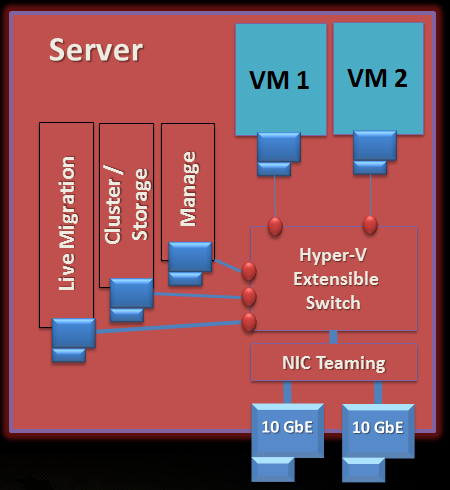
We continue further down the road of understanding converged fabrics in WS2012 Hyper-V.  The following diagram illustrates a possible design goal:
image

Go through the diagram of this clustered Windows Server 2012 Hyper-V host:

  • In case you’re wondering, this example is using SAS or FC attached storage so it doesn’t require Ethernet NICs for iSCSI.  Don’t worry iSCSI fans – I’ll come to that topic in another post.
  • There are two 10 GbE NICs in a NIC team.  We covered that already.
  • There is a Hyper-V Extensible Switch that is connected to the NIC team.  OK.
  • Two VMs are connected to the virtual switch.  Nothing unexpected there!
  • Huh!  The host, or the parent partition, has 3 NICs for cluster communications/CSV, management, and live migration.  But … they’re connected to the Hyper-V Extensible Switch?!?!?  That’s new!  They used to require physical NICs.

In Windows Server 2008 a host with this storage would require the following NICs as a minimum:

  • Parent (Management)
  • VM (for the Virtual Network, prior to the Virtual Switch)
  • Cluster Communications/CSV
  • Live Migration

All that accumulation of NICs wasn’t a matter of bandwidth. What we really care about in clustering is quality of service: bandwidth when we need it and low latency. Converged fabrics assume we can guarantee those things. If we have those SLA features available to us (more in later posts) then 2 * 10 GbE physical NICs in each clustered hosts might be enough, depending on business and technology requirements of the site.  4 NICs per host … and that’s without NIC teaming.  Double the NICs!

The amount of NICs go up.  The number of switch ports goes up.  The wasted rack space cost goes up.  The power bill for all that goes up.  The support cost for your network goes up.  In truth, the complexity goes up.

NICs aren’t important.  Quality communications channels are important.

In this WS2012 converged fabrics design, we can create virtual NICs that attach to the Virtual Switch.  That’s done by using the Add-VMNetworkAdapter PowerShell cmdlet, for example:

Add-VMNetworkAdapter -ManagementOS -Name “Manage” -SwitchName External1

… where Manage will be the name of the new NIC and the name of the Virtual Switch is External1.  The –ManagementOS tells the cmdlet that the new vNIC is for the parent partition or the host OS.

You can then:

I think configuring the VLAN binding of these NICs with port trunking (or whatever) would be the right way to go with this.  That will further isolate the traffic on the physical network.  Please bear in mind that we’re still in the beta days and I haven’t had a chance to try this architecture yet.

Armed with this knowledge and these cmdlets, we can now create all the NICs we need that connect to our converged physical fabrics.  Next we need to look at securing and guaranteeing quality levels of communications.

Windows Server 2012 Hyper-V & The Hyper-V Extensible Switch

Before we looks at this new networking feature of W2012 Hyper-V, lets look at what we have been using in Windows Server 2008/R2.  Right now, if you create a VM, you give it one or more virtual network cards (vNICs).  Each vNIC is connected to a virtual network (basically a virtual unmanaged switch) and each switch is connected to one physical NIC (pNIC) or NIC team in the host.  Time for a visual:

image

Think about a typical physical rack server for a moment.  When you connect it to a switch the port is a property of the switch, right?  You can configure properties for that switch port like QoS, VLANs, etc.  But if you move that server to another location, you need to configure a new switch port.  That’s messy and time consuming.

In the above example, there is a switch port.  But Microsoft anticipated the VM mobility issue and port configuration.  Instead of the port being a property of the virtual network, it’s actually a property of the VM.  Move the VM, you move the port, and you move the port settings.  That’s clever; configure the switch port once and now it’s a matter of “where do you want your workload to run today?” with no configuration issues.

OK, now let’s do a few things:

  • Stop calling it a virtual network and now call it a virtual switch.
  • Now you have a manageable layer 2 network device.
  • Introduce lots of new features for configuring ports and doing troubleshooting.
  • Add certified 3rd-party extensibility.

We have different kinds of Virtual Switch like we did before:

  • External – connected to a pNIC or NIC team in the host to allow VM comms on the physical network.
  • Internal – Allows VMs to talk to each other on the virtual switch and with the host parent partition.
  • Private – An isolated network where VMs can talk to each other on the same virtual switch.

Although I’m focusing on the converged fabric side of things at the moment, the extensibility is significant.  Companies like Cisco, NEC, Five9, and others have announced how they are adding functionality.  NEC are adding their switch technology, Five9 are adding a virtual firewall, and Cisco have SR-IOV functionality and a Cisco Nexus 1000v that pretty much turns the Hyper-V Switch into a Cisco switch with all the manageability from their console.  The subject of extensibility is a whole other set of posts.

With a virtual switch I can do something as basic as this:

image

It should look kind of familiar Smile  I’ve already posted about NIC teaming in Windows Server 2012.  Let’s add a team!

image

With the above configuration, the VMs are now connected to both the NICs in the host.  If one NIC dies, the team fails over and the VMs talk through the other NIC.  Depending on you load distribution setting, your VMs may even use the aggregation of the bandwidth, e.g. 2 * 10 GbE to get 20 Gbps of bandwidth. 

With NIC teaming, we have converged two NICs and used a single pipe for VM communications.  We haven’t converged any fabrics just yet.  There’s a lot more stuff with policies and connections that we can do with the Virtual Switch.  There will be more posts on those topics soon, helping us get to the point where we can look at converging fabrics.

Windows Server 2012 Hyper-V & Network Card (NIC) Teaming

Every time Microsoft gave us a new version of Hyper-V (including W2008 R2 SP1) we got more features to get the solution closer in functionality to the competition.  With the current W2008 R2 SP release, I reckon that we have a solution that is superior to most vSphere deployments (think of licensed or employed features).  Every objection, one after the next, was knocked down: Live Migration, CSV, Dynamic Memory, and so on.  The last objection was NIC teaming … VMware had it but Microsoft didn’t have a supported solution.

True, MSFT hasn’t had NIC teaming and there’s a KB article which says they don’t support it.  NIC teaming is something that the likes of HP, Dell, Intel and Broadcom provided using their software.  If you had a problem, MSFT might ask you to remove it.  And guess what, just about every networking issue I’ve heard on on Hyper-V was driver or NIC teaming related.

As a result, I’ve always recommended against NIC teaming using OEM software.

We want NIC teaming!  That was the cry … every time, every event, every month.  And the usual response from Microsoft is “we heard you but we don’t talk about futures”.  Then Build came along in 2011, and they announced that NIC teaming would be included in W2012 and fully supported for Hyper-V and Failover Clustering.

image

NIC teaming gives us LBFO.  In other words, we can aggregate the bandwidth of NICs and have automatic failover between NICs.  If I had 2 * 10 GbE NICs then I could team them to have a single pipe with 20 Gbps if both NICs are working and connected.  With failover we typically connect both NICs to ports on different access switches.  The result is that if one switch, it’s NIC becomes disconnected, but the other one stays connected and the team stays up and running, leaving the dependent services available to the network and their clients.

Here’s a few facts about W2012 NIC teaming:

  • We can connect up to 32 NICs in a single team.  That’s a lot of bandwidth!
  • NICs in a single team can be different models from the same manufacturer or even NICs from different manufacturers.  Seeing as drivers can be troublesome, maybe you want to mix Intel and Broadcom NICs in a team for extreme uptime.  Then a dodgy driver has a lesser chance of bringing down your services.
  • There are multiple teaming modes for a team: Generic/Static Teaming requires the switches to be configured for the team and isn’t dynamic.  LACP is self-discovering and enables dynamic expansion and reduction of the NICs in the team.  Switch independent works with just a single switch – switches have no knowledge of the team.
  • There are two hashing algorithms for traffic distribution in the NIC team.  With Hyper-V switch mode, a VM’s traffic is limited to a single NIC.  In lightly loaded hosts, this might no distribute the network load across the team.  Apparently it can work well on heavily loaded hosts with VMQ enabled.  Address hashing uses a hashing algorithm to spread the load across NICs.  There is 4-tuple hashing (great distribution) but it doesn’t work with “hidden” protocols such as IPsec and fails back to 2-tuple hashing.
  •  

    NIC teaming is easy to set up.  You can use Server Manager (under Local Server) to create a team.  This GUI is similar to what I’ve seen from OEMs in the past. 

    image

    You can also use PowerShell cmdlets such as New-NetLbfoTeam and Set-VMNetworkAdapter.

    One of the cool things about a NIC team is that, just like with OEM versions, you can create virtual networks/connections on a team.  Each of those connections have have an IP stack, it’s own policies, and VLAN binding.

    image

    In the Hyper-V world, we can use NIC teams to do LBFO for important connections.  We can also use it for creating converged fabrics.  For example, I can take a 2U server with 2 * 10 GbE connections and use that team for all traffic.  I will need some more control … but that’s another blog post.

    Microsoft Private Cloud Computing Book Nearing The Stores

    I just saw this tweet by Damian Flynn, regarding the book Microsoft Private Cloud Computing (Sybex, 2012):

    #MsftPrivateCloud And it is done, that final edits have being submitted and the printer takes ownership tomorrow!

    Hans, Patrick and Damian did in incredible amount of work on this book.  In fact, Damian went the extra mile *twice* (or was it three times? Smile) to make sure the reader got the very best and latest information on this solution (it’s hard writing a book on something before it RTMs).  Gentlemen, I salute you!
    image

    Amazon has a date of July 3rd posted.  That’s not always accurate.  And yes, there will be ebook versions, such as Kindle.  Don’t ask me when – you’ll know before I do.

    Windows Server 2012 Hyper-V & Data Centre Bridging (DCB)

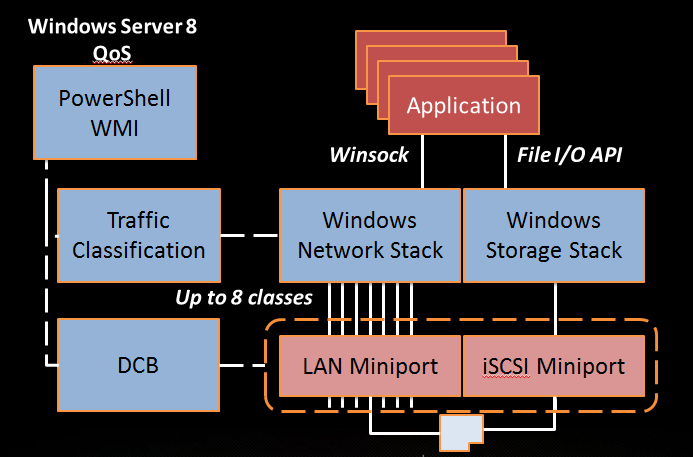
    DCB is a feature that is new to Windows Server 2012 networking and we can take advantage of this in creating converged fabrics in Hyper-V, private and public clouds.  According to Microsoft:

    IEEE 802.1 Data Center Bridging (DCB) is a collection of standards that defines a unified 802.3 Ethernet media interface, or fabric, for local area network (LAN) and storage area network (SAN) technologies. DCB extends the current 802.1 bridging specification to support the coexistence of LAN-based and SAN-based applications over the same networking fabric within a data center. DCB also supports technologies, such as Fibre Channel over Ethernet (FCoE) and iSCSI, by defining link-level policies that prevent packet loss.

    According to Wikipedia:

    Specifically, DCB goals are, for selected traffic, to eliminate loss due to queue overflow and to be able to allocate bandwidth on links. Essentially, DCB enables, to some extent, the treatment of different priorities as if they were different pipes. The primary motivation was the sensitivity of Fibre Channel over Ethernet to frame loss. The higher level goal is to use a single set of Ethernet physical devices or adapters for computers to talk to a Storage Area Network, Local Area network and InfiniBand fabric.

    Long story short: DCB is a set of Ethernet standards that leverage special functionality in a NIC to allow us to converge mixed classes of traffic onto that NIC such as SAN and LAN, which we would normally keep isolated.  If your host’s NIC has DCB functionality then W2012 can take advantage of it to converge your fabrics.

    image

    The Hyper-V Demo I Dream Of Giving …

    I think my demo at the Windows Server 2012 Rocks events is cool but I have bigger ambitions …

    Imagine that Hyper-V Replica has replicated from the private cloud to the public cloud.  Using Kinnect for Windows, I select my VM, move my hand through the air and cause it to Live Migrate from private to public, with the storage migration leveraging the Hyper-V Replica content in the DR site.

    Credit to Dave Northey (MSFT IE DPE) for the Replica concept which he dreamed up this morning over coffee.  Maybe we’ll get it and admin by Kinnect in vNext, vNext +1 or vNext +2 Smile

    Technorati Tags: ,,

    Windows Server 2012 Hyper-V Making Converged Fabrics Possible

    If you wanted to build a clustered Windows Server 2008 R2 host, how many NICs would you need?  With iSCSI, the answer would be 6 – and that’s without any NIC teaming for the parent, cluster, or VM comms.  That’s a lot of NICs.  Adding 4 ports into a host is going to cost hundreds of euros/dollars/pounds/etc.  But the real cost is in the physical network.  All those switch ports add up: you double the number of switches for NIC teaming, those things aren’t free, and the suck up power too.  We’re all about consolidation when we do virtualisation.

    Why do we have all those NICs in a W2008 R2 Hyper-V cluster?  The primary driver isn’t bandwidth.  The primary reason is to guarantee a level of service. 

    What if we had servers that came with 2 * 10 GbE NICs?  What if they could support not only 256 GB RAM, but 768 GB RAM?  That’s the kind of spec that Dell and HP are shipping now with their R720 and HP DL380 Gen8.  What if we had VM loads to justify these servers, then we needed 10 GbE for the Live Migration and backup loads?  What if there was a way to implement these servers with fewer network ports, that could take advantage of the cumulative 20 Gbps of bandwidth but with a guaranteed level of service?  Windows Server 2012 can do that!

    My goal with the next few posts is to describe the technologies that allow us to converge fabrics and use fewer network interfaces and switch ports.  Fabrics, what are they?  Fabric is a cloud term … you have a compute cluster (the hosts), a storage fabric (the storage area network, e.g. iSCSI or SMB 3.0), and fabrics for management, backup, VM networking and so on.  By converging fabrics, we use fewer NICs and fewer switch ports.

    There is no one right design.  In fact, at Build, the presenters showed lots of designs.  In recent weeks and months, MSFT bloggers have even shown a number of designs.  Where there was a “single” right way to do things in W2008 R2/SP1, there are a number of ways in W2012.  W2012 gives us options, and options are good.  It’s all a matter of trading off on tech requirements, business requirements, complexity, and budget.

    Watch out for the posts in the coming days.

    My Hyper-V Replica Guest Post On ZDNet

    If you were to wander down to ZDNet today, you were in for a surprise.  There, on Mary Jo Foley’s All About Microsoft blog, you’ll find a guest article by me, talking about Windows Server 2012 Hyper-V Replica (HVR).

    Mary Jo is on vacation and when planning for it, she asked a few people to write guest articles for her absence.  You may have noticed that I’m a HVR fan, so I suggested this topic.  I wrote the post, Ben Armstrong (aka The Virtual PC Guy) was kind enough to check my work, and submitted it to Mary Jo.

    Two other posts that I’ve written on the subject might interest you:

    • One from last year from when we didn’t have the techie details where I look at different scenarios.
    • And a post I wrote after the release of the beta when we MVPs were cleared to talk about the techie details.
    • And of course, don’t forget the guest post I did for Mary Jo.

    Thanks to Ben for checking my article, and thanks to Mary Jo for the chance to post on her blog!

    Roku Media and Netflix Player Officially Comes To Ireland

    In the USA, it seems like that if you subscribe to Netflix then you probably also buy a Roku.  I knew about the devices from a few years ago when I friend introduced me to Netflix and Roku when visiting with him in NC, USA.  Netflix came to Ireland early this year, and thanks to my employers (a distributor), Roku is now available in Irish retail outlets too.

    I made sure to put my name down for one once they came into stock.  That was a few weeks ago but I’ve been out of the office for a while.  I finally got my one on Friday and set it up that night.

    Here in Ireland (and the UK) the Roku comes in two models, the LT and the higher spec 2 XS.  I went for the latter model.

    The device is tiny, about 3 inches square and about 1 inch tall, taking no space at all under the TV, and is totally silent.  It has a HDMI output and a composite output.  There is a USB port and a micro SD port.  It can use wifi or a classic wired network connection (always preferred for streaming media).

    Setting it up was easy:

    • Cable it up – power and TV connection (HDMI for me)
    • Configure the wifi connection
    • Allow the automatic software update & reboot
    • Set the time zone
    • Log into http://roku.com/link with an activation code
    • Create Roku account and activate the device
    • Create a payment method for any future purchases, just like with iTunes
    • Select apps/channels, e.g. free Netflix or TWiT
    • The Roku downloads apps automatically right there

    At that point the machine is ready to rock and roll.  The Roku is a great way to watch Netflix on your TV.  I went into the settings and configured it for 1080p instead of the default 720p.  Then I fired up the Netflix channel, logged in (required once only) and started browsing and watching.  I also tried out the TWiT channel and started watching an archived episode of Windows Weekly.

    The other big reason to have a device like a Roku is to play media.  Apparently you can do this with USB, and I guess the micro SD card.  But I prefer to use the network for this.  I keep content on m Windows Home Server.  I was told that a free download called Plex could be installed on a Windows machine so that’s what I did, turning my WHS into a Plex media server.  The Plex server is configured using a web portal, where you can add channels for TV, Movies, and Music, pointing to the folders that contain the content.  I browsed the available channels on the Roku and installed the Plex client (channel).  Starting it, it automatically discovered my WHS.  I browsed my content and found that Plex also downloaded metadata for some content from the web, making it easier to browse.

    The Roku is a nice device.  The lower end model is pretty cheap, making it one of those things that you could quite happily pick up without a big decision.  I’m liking it so far.

    I’ve Got A Cool Demo Ready For Next Week

    On Monday I’ll be in Belfast and on Tuesday I’ll be in Dublin presenting at the Windows Server 2012 Rocks community events.  My topics for next week are Hyper-V and Networking.  Assuming the Internet connectivity works, I’ve got a very cool demo to show of some of the capabilities of Windows Server 2012 featuring:

    • Some of the great open source work by Microsoft
    • PowerShell scripting
    • New networking features
    • Virtualisation mobility

    Not to mention a bunch of other demos all pushing the HP ProLiant lab that I have at work.  The other demos are canned … experience has taught me that I can’t rely on hotel Internet … but this special demo is not recorded just so I can have something special for a live “will it break?” demo.

    If you’ve registered (click on the event to register), then don’t miss out.  And if you haven’t registered yet, then what are you waiting for?

    EDIT:

    The demo won’t break Smile