Windows 8 Beta And Consumer Preview Are Live – Get The Bits

Now we move into interesting times.  After some announcement in Barcelona (I was asleep near Redmond getting my first decent sleep since Friday night – jetlag) Microsoft has launched the following two releases:

  1. Windows Consumer Preview : This is the desktop OS with a marketing label for the beta.  I think there is also a VHD download but I’ve linked the ISO.  .
  2. Windows Server 8 Beta: What it says on the tin.

If you go for the VHD route, then check out Hans Vredevoort’s post on how to do a boot from VHD for this release.

Additional content is also available:

Expect the information dump to start from Microsoft, and expect your local Microsoft office to start communicating over the next week.

I’ve kicked off my server downloads at the Hyatt in Bellevue at the MVP summit.  It appears that the other residents (mostly MVPs) have also done this …. so my download will complete in 3 or so days.  Ah well, I’m sure the guest wifi network on campus can handle 1000+ of us doing a download Smile with tongue out

I cannot wait for the last bits of the lab at work to get delivered so I can get building.

It’s That Time of Year Again – MVP Summit AKA #MVP12

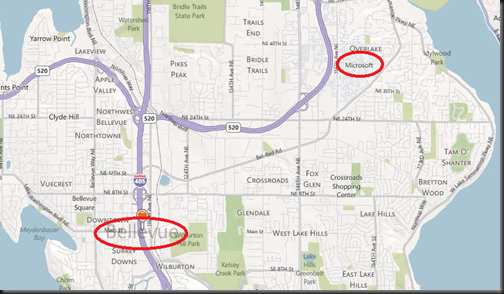
It’s that time of year when between 1,000 and 2,000 Microsoft Valuable Professionals (MVPs) stop blogging, tweeting, doing public speaking, and drop of the face of the planet.  That’s because it’s MVP Summit time, the opportunity for us to visit with Microsoft, the product groups and our colleagues in the MVP world in Bellevue (near Seattle) and Redmond (the MSFT global HQ). 

image

We go off the air because most of the content is under NDA.  This is the biggest privilege we get as MVPs, interacting directly with the product groups, sharing your feedback (more later), and getting some insider info which when it is public, we can use to help educate our respective communities.

I’m all packed, and ready to rock.  I fly into Seattle tomorrow night and stay for a week.  I know that some MVPs are landing around now to contribute to MSFT Geek Give, a charitable program run by MSFT before big conferences.  I’ve a very interesting day lined up for Monday with a few of my friends.  I can’t talk about it yet (or at all – I’ll find out on Monday) but I’m really looking forward to it and a BIG thank you to the persons responsible for arranging it.  And then we go deep under, emerging on Friday, and that’s all you’ll hear from me on those days Smile  In the meantime, I’ll get to hang out with my fellow Hyper-V MVP and the various friends I’ve gotten to know in this community over the past few years.

Back to your feedback.  On my last 2 visits, I’ve asked you for your feedback.  On those occasions we had already released version of Hyper-V.  So this time, I want your feedback on Windows 8 Hyper-V and what you’d like like to hear on Windows vNext Hyper-V.  My rules for your feedback are simple:

  1. Read the list of publicly released features for Windows Server 8 Hyper-V.
  2. When posting your feedback on Windows Server 8, remember that the beta/”Consumer Preview” is to be launched on Feb 29th.  We are probably at feature lock so no new stuff will be developed, but feedback on existing stuff will be welcome.
  3. If something isn’t there in v8, what would you like to see in “v9 Hyper-V”?
  4. Keep it polite, short, and explain reason.

Post your feedback using the comment feature at the end of this post.  Feedback is important to the Hyper-V guys.  They really do value and use it.  If you say what you want and why, the “why” is just as important as the “what”.  There’s a long list of “what” and the “why” can change the order.

Recent Hotfixes For Windows Server 2008 R2 Hyper-V

More catch up from the last 2 weeks, this time for Hyper-V:

KB977756: Event ID 53 is logged on a computer that is running Windows Server 2008 or Windows Server 2008 R2 with Hyper-V virtual machines installed

Consider the following scenario:

  • You have a computer that is running Windows Server 2008 or Windows Server 2008 R2 system that has a Hyper-V role installed.
  • You start several Hyper-V virtual machines at the same time.

In this scenario, each Hyper-V virtual machine takes about 1 minute to start. Therefore, if you have more virtual machines, the last virtual machine takes longer to start. For example, when you start 30 virtual machines at the same time, it takes up to 30 minutes for the last virtual machine to start.
When you check the Microsoft-Windows-CAPI2/Operational log after the virtual machines have started, the following event is logged:

Log Name: Microsoft-Windows-CAPI2/Operational
Source: CAPI2
Event ID: 53
Level: Error
User: NETWORK SERVICE
Task Category: Retrieve Object from Network

When you view the event details, the EventAuxInfo ProcessName value is vmwp.exe.

When you start the Hyper-V virtual machines, the certificate store is enumerated to determine the preferred certificate that should be used to manage the virtual machine. If there are issues in verifying certificates in the store, they may cause the virtual machines to take longer than 30 minutes to start.

To work around these issues with certificates, you can configure a Hyper-V role to use the self-signed certificate that is generated by the Hyper-V Virtual Machine Management (VMMS) service instead of enumerating the whole certificate store when the virtual machines are started.
To configure a Hyper-V role to use the self-signed certificate from the VMMS service, follow these steps:

  1. To copy the PowerShell script, visit the following Microsoft Web site:

    http://gallery.technet.microsoft.com/ScriptCenter/en-us/5b4a7114-218b-466c-a9c1-7eb2f725e707 (http://gallery.technet.microsoft.com/ScriptCenter/en-us/5b4a7114-218b-466c-a9c1-7eb2f725e707)

  2. Paste the script into Notepad, and then save the file as Certfix.ps1.
  3. Open an elevated Windows PowerShell command prompt.
  4. Run the Certfix.ps1 script.

For example, if you save the script to C:Scripts, type the following command at the PowerShell command prompt:

C:ScriptsCertfix.ps1

Note The self-signed certificate that is generated by the Hyper-V VMMS service is valid for one year. As soon as the certificate expires and the Hyper-V VMMS service generates a new certificate, you must run the Certfix.ps1 script to configure the Hyper-V role to use the new certificate.

To determine the expiration date for the Hyper-V VMMS service self-signed certificate, follow these steps:

  1. Click Start, click Run, type mmc, and then click OK.
  2. On the File menu, click Add/Remove Snap-in.
  3. Click Certificates, and then click Add.
  4. Click Service account, and then click Next.
  5. Click Local Computer, and then click Next.
  6. Click Hyper-V Virtual Machine Management, and then click Finish.
  7. Click OK to close the Add/Remove Snap-in window.
  8. Expand Certificates – Service, expand VmmsPersonal, and then click Certificates.
  9. Double-click the VMM Service certificate, and then check the expiration date in the VMM Service certificate window.

KB2587660: Memory dump file is generated very slowly on a Hyper-V virtual machine that uses Dynamic Memory when the Maximum RAM setting is over 4 GB in Windows Server 2008 R2

Consider the following scenario:

  • You install the Hyper-V role on a computer that is running Windows Server 2008 R2 Service Pack 1 (SP1).
  • You create a virtual machine on the Hyper-V server.
  • You configure the virtual machine to use Dynamic Memory and set the Maximum RAM setting to a value that is larger than 4 GB.
  • You start the virtual machine, and memory consumption approaches the maximum limit.
  • You try to generate a complete memory dump file on the virtual machine.

In this scenario, it takes a very long time to generate a complete memory dump file on the virtual machine. For example, it takes approximately 5 hours to generate a complete memory dump file if you set the Maximum RAM setting to 8 GB.

A supported hotfix is available from Microsoft. However, this hotfix is intended to correct only the problem that described in this article. Apply this hotfix only to systems that are experiencing the problem described in this article. This hotfix might receive additional testing. Therefore, if you are not severely affected by this problem, we recommend that you wait for the next software update that contains this hotfix.

Recent KB Hotfixes for Windows Server 2008 R2 Failover Clustering

I’m catching up after my Norway vacation and the recent Intune roadshow in Ireland.

KB2462468: Unable to manage cluster using failover cluster manager. Error Received: "Connection to the cluster is not allowed since you are not an administrator on the cluster node(s) "

While managing cluster using failover cluster management console we receive the following error:
Error
The operation has failed.
An error occurred connecting to the cluster ‘.’.
[Expanded Information]
An error occurred trying to display the cluster information.
Connection to the cluster is not allowed since you are not an administrator on the cluster node(s) (Node name)

Collapse this imageExpand this image

error that we get when we try to manage cluster

or
When you run the Cluster validation you recieve the following error:
Unable to determine if you have administrator privileges on server "Node name" . Please ensure sure that the server service and remote registry services are enabled, and that the firewall is properly configured for remote access.
Managing cluster using command prompt will still work and will be able to list groups (cluster group), resources (cluster . res) and even be able to do failover of groups (cluster group "cluster group" /move) but will error out while managing cluster using GUI (Failover Cluster Management console).
Note: Command to list group & resources, move group are given in bracket.

This issue occurs if you have server service not started on the node which is shown in the error. Please expand the error to check node name.
Additionally, you may get above mentioned issue due to incorrect protocol enabled which are required for Microsoft clustering.

Open services console and start the Server service.
Ensure the cluster network has both the mentioned below protocol checked:
1. Client for Microsoft networks
2. File and printer sharing for Microsoft networks

KB2008795: Unable to access ClusterStorage folder on a passive node in a server 2008 R2 cluster

On a Windows Server 2008 R2 cluster with Cluster Shared Volume(CSV) feature enabled, a user may be unable to access a CSV volume from a passive (non-coordinator) node. When clicking on a CSV volume, explorer may hang. One or all of the following events may be displayed:

Event ID: 5120
Source: Microsoft-Windows-FailoverCluster
Level: Error
Description: Cluster Shared Volume "volume_name" is no longer available on this node because of "STATUS_BAD_NETWORK_PATH(c00000be)’. All I/O will temporarily be queued until a path to the volume is re-established.

Event ID: 5120
Source: Microsoft-Windows-FailoverCluster
Level: Error
Description: Cluster Shared Volume "volume_name" is no longer available on this node because of ‘STATUS_CONNECTION_DISCONNECTED(c000020c)’. All I/O will temporarily be queued until a path to the volume is reestablished.

Event ID: 5120
Source: Microsoft-Windows-FailoverCluster
Level: Error
Description: Cluster Shared Volume "volume_name" is no longer available on this node because of ‘STATUS_MEDIA_WRITE_PROTECTED(c00000a2)’. All I/O will temporarily be queued until a path to the volume is reestablished.

Event ID generated: 5142
Source: Microsoft-Windows-FailoverCluster
Description: Cluster Shared Volume "volume_name" (‘Cluster Disk #’) is no longer accessible from this cluster node because of error ‘ERROR_TIMEOUT(1460)’. Please troubleshoot this node’s connectivity to the storage device and network connectivity.

When accessing a CSV volume from a passive (non-coordinator) node, the disk I/O to the owning (coordinator) node is routed through a ‘preferred’ network adapter and requires SMB be enabled on that network adapter. For SMB connections to work on these network adapters, the following protocols must be enabled:

  • Client for Microsoft Networks
  • File and Printer Sharing for Microsoft Networks

Review each cluster node and verify the following protocols are enabled the network adapters available for Cluster use

  • Client for Microsoft Networks
  • File and Printer Sharing for Microsoft Networks

1. Click Start , click Run , type ncpa.cpl , and then click OK .
2. Right-click the local area connection that is associated with the network adapter, and then click Properties .
3. Verify that the above protocols appear in the This connection uses the following items box. If either is missing, follow these steps:
a. Click Install , click Client , and then click Add .
b. Select the missing protocol, click OK , and then click Yes .
4. Verify that the check box that appears next to Client for Microsoft Networks is selected.

Personal Note: Those two articles are closely related.  It appears that people are incorrectly unbinding the 2 required networking protocols for CSV: Client for Microsoft Networks & File and Printer Sharing for Microsoft Networks.

KB2637197: CSV LUNs fail if you use a VSS hardware provider to back up virtual machines on a Windows Server 2008 R2-based cluster

Consider the following scenario:

  • You configure a failover cluster that consists of servers that are running Windows Server 2008 R2.
  • You create a cluster shared volume (CSV) that includes some virtual machines that are owned by different cluster nodes.
  • You back up the virtual machines by using a Volume Shadow Copy Service (VSS) hardware provider. For example, you back up a protection group in Microsoft System Center Data Protection Manager (DPM) 2010.
  • The owner of the CSV changes during the backup process.

In this scenario, the CSV logical unit numbers (LUNs) enter a failed state, and do not come online on the next cluster node. Therefore, the backup process fails.
Notes

  • This issue does not occur if you do not use a VSS hardware provider to back up the virtual machines.
  • This issue does not occur if the change of owner of the CSV is not triggered during the backup process.

This issue occurs because the Cluster service incorrectly accesses stale information to determine whether a CSV LUN is in the correct state to start the backup process.

A supported hotfix is available from Microsoft. However, this hotfix is intended to correct only the problem that is described in this article. Apply this hotfix only to systems that are experiencing the problem described in this article. This hotfix might receive additional testing. Therefore, if you are not severely affected by this problem, we recommend that you wait for the next software update that contains this hotfix.

Event – Microsoft Ireland System Center 2012 Launch

Myself and some other community contributors will be working with Microsoft Ireland to launch System Center 2012 next month:

Please join us for our System Centre 2012 launch events in Dublin or Belfast and hear customers talk about how they implemented virtualisation, automation and delivered IT-as-a-service in a way that transformed their business. Engage in a lively discussion with partners and independent experts as they present real-world challenges and show how System Center addresses them.

System Center 2012 enables you to:
  • Deploy flexible, cost-effective Infrastructure as a Service (Iaas)
  • Deliver predictable application service levels
  • Take control of your public and private cloud resources

Register now to reserve your place

imageimage

 
On the Agenda

Time

Session

10:00 – 10:30

Event Registration

10:30 – 11:30

Hear how Microsoft takes the experience of running the largest datacentres in the world and applies it to scalable management solutions for customers worldwide

11:30 – 12:00

Damian Flynn from Lionbridge Technologies shares the cost savings and efficiencies achieved from implementing System Center

12:00 – 13:00

Lunch

13:05 – 16:15

Real-world examples from Industry Experts

Demonstration based sessions sharing scenarios that you can take and apply to your business. Examples include Deep Application Insights, Cloud and Data Centre – Automation and managing from the desktop to the datacentre

Subject Matter Experts

Aidan Finn (MVP – Virtual Machine), works for MicroWarehouse Ltd as a technical sales lead, working with Microsoft partners on Hyper-V, System Center and Forefront opportunities. He has been working with systems management technologies since 1996, and is experienced with Windows Server, desktop deployment and management, System Center, virtualisation, and so on. He blogs on https://aidanfinn.com, tweets as @joe_elway, and has written or contributed to books such as Mastering Hyper-V Deployment and Mastering Windows 7 Deployment.

Damian Flynn (MVP – System Center Cloud & Data Centre), works for Lionbridge Technologies (a Localisation, Logo Certification, Search & Content Services Company) as a Technical Architect of Corporate IT Infrastructure, working with the Business Stakeholders, IT Team, and Partners. Damian is a member of the Microsoft Windows Sever Futures Council, actively participating in multiple Microsoft TAP programs, and has being working on infrastructure technologies since 1994, with a high level of experience in Networking, Storage, Linux and Windows Servers, Virtualisation, System Center, etc. He blogs on http://www.damianflynn.com, tweets from time to time on @damian_flynn, and is a contributing author on the forthcoming book “Microsoft Private Cloud Computing”.

Kevin Greene (Subject Matter Expert – Microsoft System Center Operations Manager), works for Ergo Group Ireland. Kevin has been responsible for the deployment of a large number of System Center projects to enterprise level clients across all sectors. He blogs at http://kevingreeneitblog.blogspot.com and you can also find him on Twitter as @kgreeneit

Paul Keely Paul has been working with System Center in its original from form for nearly ten years. He works for Infront Consulting group, a specialist system center practice that deploys system center to some of the biggest companies in the world.

Returning Home & Blogging to Resume Next Week

After a week of photography in the Flatanger Kommune in Norway I’m getting ready to return back to Ireland where a Windows Intune roadshow in Cork, Dublin, and Belfast awaits me.

It was a good week with Ole-Martin Dahle.  Here’s a taster:

Juvenile Golden Eagle

Juvenile Golden Eagle

Jay in the snow

Eurasian Wolf pack

Roe Deer

Eurasian Lynx

Golden Eagle

I’ll Be In Norway And Not Blogging Much, If At All

I am going here tomorrow:

image

To spend a week taking photographs such as this:

From before sunrise until after sunset, I (aka Mr. Patience 2012 *snigger*) will be sitting in a hide, reading my Kindle and waiting for either a Golden Eagle, White-Tailed Eagle or Goshawk to land in my sights. 

When I get back, it’ll be straight into a Windows Intune road show for work.

Don’t expect too much blogging Smile

Some More Windows 8 On ARM (WOA) News

Here’s a follow up to this morning’s initial WOA post.  That Build Windows post was another Sinofsky classic (l-o-n-n-n-g-g) so I think we’ll be spending quite some time piecing it all together.  It also appears that Sinofsky has done a number of interviews/conferences that add more detail.

The first is via Mary Jo Foley who says that Ina Fried said that:

… the only Desktop Apps that will be allowed on the Desktop on Windows on ARM will be Office 15 and elements of the Microsoft operating system.

Interesting.  That reinforces the point that if you want an app to run on WOA, it must be a Metro app, and you must download/buy it from the Microsoft online store.  But, we know that Metro app will work on

Mary Jo also says that WOA will release simultaneously with the x86/x64 editions of Windows 8.  That is surprising to me.  Everything we had heard said it would be much later.  That made sense to me because we’re talking about a new compile and a new type of hardware for many manufacturers.  I guess the likes of Samsung, Asus, etc, all have plenty of experience in the Android space that can carry over.  And I guess MSFT’s own testing must have gone very well (if you’ve read Showstopper then you know have a tiny clue on how they stress this stuff).

EDIT #1:

And just as I post, Simon Bisson posted his story on a Sinofsky phone conference.  Simon says that Microsoft:

… plans to bundle its own Metro-style applications on ARM devices, including Mail, Calendar, Photo Gallery, Storage and a set of media players. All applications — including those from third-party developers — will be delivered from Microsoft’s app store or via Windows Update, with no other ways to install code.

He adds that Sinofsky confirmed:

All the updates — whether it’s for firmware, drivers or apps — will only come through the Windows Update or Microsoft Update infrastructure and the store.

As for the upcoming Consumer Preview:

… will only be for Intel and AMD hardware.

Don’t get stressed about trying to get one of the new WOA “TAP” tablets.  Odds are we’ll see leaked images soon enough.  Apparently the devices are very rough and ready, just enough for developers to get working and testing and not consumer ready at all.

Check out Simon’s post for more info.

Technorati Tags: ,

Many Questions Answered By Microsoft About Windows on ARM, And More Asked

At 6pm Irish time last night, the official Build Windows blog sent tech journalists into a tizzy.  Microsoft finally started getting into some specifics about Windows on ARM (WOA), the Windows 8 on system-in-a-chip solution that will be the Microsoft tablet – BTW please stop calling slate PCs tablets because they are clearly not!

Look And Feel

This is the same OS as for the PC/laptop/slate.  The compilation will be different because there are different processor instruction sets.  People who know ARM better than I do (almost nothing) say that each manufacturer will require their own build.  That’s because there really is no single ARM CPU like Intel or AMD.  It’s an intellectual property that is licensed out to companys like Nvidia and Snapdragon to build their own CPUs.  If you own a smartphone or tablet, then you have a strong chance of owning one of these processors already.

You will sign in the same way. You will start and launch apps the same way. You will use the new Windows Store the same way. You will have access to the intrinsic capabilities of Windows, from the new Start screen and Metro style apps and Internet Explorer, to peripherals, and if you wish, the Windows desktop with tools like Windows File Explorer and desktop Internet Explorer. It will have the same fast and fluid experience. In other words, we’ve designed WOA to look and feel just like you would expect. WOA enables creativity in PC design that, in combination with newly architected features of the OS, will bring to customers new no-compromise experiences.

Metro App Mobility

Metro apps aren’t compiled for CPU instruction sets like traditional executable programs.  That means that they are mobile.  They can run if they find WinRT in the OS,  WinRT is a key piece of Metro UI and its present in all Windows 8 builds.  That means an app developed on a Windows 8 will run on a Windows 8 tablet with no probem.  We might guess that this holds true for Apollo, the next version of Windows Phone which is actually Windows 8, and not an evolution of Windows Phone 7.5 (Mango).

Metro style apps in the Windows Store can support both WOA and Windows 8 on x86/64.

They go on to say:

WOA can support all new Metro style apps, including apps from Microsoft for mail, calendaring, contacts, photos, and storage. WOA also includes industry-leading support for hardware-accelerated HTML5 with Internet Explorer 10. WOA will provide support for other industry-standard media formats, including those with hardware acceleration and offloading computation, and industry-standard document formats. In all cases, Microsoft seeks to lead in end-user choice and control of what apps to use and what formats to support.

Office “15” Support

There as been a lot of pointless debate about this since Steve Ballmer uttered a couple of sentences at a stockholder meeting during //Build.  We in the public knew nothing.  I suspect the TAP members either found out last week or last night like us.  Remember that Office is old Sinofsky country and operates just like Windows does now.

WOA includes desktop versions of the new Microsoft Word, Excel, PowerPoint, and OneNote. These new Office applications, codenamed “Office 15”, have been significantly architected for both touch and minimized power/resource consumption, while also being fully-featured for consumers and providing complete document compatibility.

What does “includes” mean?  I really really doubt that Microsoft are including their cash cow for free.  Not even Sinofsky has that sot of swing inside Microsoft.  Every now and then the licensing folks “include” something for “free”.  For example, the VDI Standard/Premium suites include Hyper-V … go look at what that really is and it’s actually the already free Hyper-V Server.  Gee thanks mistah!

Office is already on the Net as SaaS in a lighter form factor.  I bet it runs nice in IE10 as a pinned app Winking smile

What we know is that Office will support touch.  The recent TAP announcement told us about a new Radial control that is more touch friendly than they teeny tiny ribbon controls.

The Desktop

I am one to say I told you so, so there!.  It’s ludicrous to even imagine that Microsoft could ditch the access route to managing and configuring 80% of the machine’s features by not giving us a desktop.  The Metro Control Panel is a great start, but that’s all it is right now; a start.

WOA supports the Windows desktop experience including File Explorer, Internet Explorer 10 for the desktop, and most other intrinsic Windows desktop features—which have been significantly architected for both touch and minimized power/resource consumption.

Where Can You Get Hardware?

A “limited” number of people will be made available to developers and hardware partners.  So no, you will not be able to download the Consumer Preview on Feb 29th and install it on a tablet.

Licensing

They mention that there will be a single SKU, so no starter, professional, or enterprise versions of WOA.  The features will be tweaked accordingly.  This is where marketing can make or break the product for consumer and business use  The seriously need to include “better together” technologies such as BitLocker and DirectAccess t make WOA a business friendly tablet to get an edge over iPad which is starting to sell in huge amounts to the enterprise.

Social Apps

It’s the little things that make or break a tablet for the consumer, and choice is important.

We have also previously demonstrated Microsoft’s new Metro style apps for connecting to cloud-based services like Hotmail, SkyDrive, Messenger, and— through those services—a wide variety of third parties. For example, our mail app connects to industry-standard EAS, which covers an array of enterprise and consumer-based mail, calendaring, contacts. With existing Live Connect capabilities, you can chat with your Facebook friends, or keep up-to-date on your LinkedIn or Twitter feeds all in a Metro style app—these are just a couple of examples of over 100 different services globally that you can connect to your Microsoft account. These apps are provided with WOA, but of course, people can remove these, set different defaults, or use the Windows Store to get similar apps from third parties.

Battery Life is Everything In A Tablet

ARM is built for this sort of thing, that’s why I get fussy about the lazy misuse of the word tablet instead of slate PC.  WOA understands the importance of battery life:

One of the new aspects of WOA you will notice is that you don’t turn off a WOA PC. WOA PCs will not have the traditional hibernate and sleep options with which we are familiar. Instead, WOA PCs always operate in the newly designed Connected Standby power mode, similar to the way you use a mobile phone today. When the screen is on, you have access to the full power and capabilities of the WOA PC. When the screen goes dark (by pressing the power button or timer), the PC enters a new, very low-power mode that enables the battery to last for weeks. All along, however, the system dynamically adjusts power consumption and is always on the lookout for opportunities to reduce power to unused parts of the system

Can You Run Old Programs on WOA?

In a word: no.

Previously we have detailed that WOA will not support any type of virtualization or emulation approach, and will not enable existing x86/64 applications to be ported or run.

That means your old programs must run on Intel/AMD Windows machines.  Or maybe you can publish them via RDP to WOA?

They also say:

In fact, WOA only supports running code that has been distributed through Windows Update along with the full spectrum of Windows Store applications … If you need to run existing x86/64 software, then you will be best served with Windows 8 on x86/64.

That will make management via Configuration Manager rather … interesting.  I wonder if there will be ties into the new store for software distribution?

The Build Windows blog article is a very long post.  I’ve written this while waiting for a meeting and I’m heading into it now.  There’s more detail and more on app development and hardware that you can read.

Technorati Tags: ,