VMM 2012 Distributed Key Management (DKM)

Virtual Machine Manager 2012 (VMM/SCVMM) 2012 adds something that was lacking in VMM 2007/2008/20008 R2: clustered VMM servers.  VMM 2012 is the gateway to the private cloud and you want that gateway to be fault tolerant at the hardware, OS, and service level.  If you want to have a clustered VMM server then you will need to get to grips with some new concepts.

The VMM database contains a lot of information.  Some of that information can be sensitive, such as product keys or administrator passwords.  You don’t want just anyone getting a copy of that database (from offsite stored backup tapes, for example [which should be encrypted anyway]) and figuring out a way into gaining administrative rights to your network.  For this reason, VMM uses encryption to protect the contents of this database. 

By default the decryption keys for accessing the encrypted data are stored on the VMM server.  Now imagine you have set up a clustered VMM server and those keys are stored locally, as seen below.

image

The first node with the local keys would encrypt the SQL data and access it with no issue at all.  But what would happen after a failover of the VMM service from Node 1 to Node 2?  The decryption keys are unavailable, on Node 1, and Node 2 has no way to read the encrypted data in clear text.  There goes the uptime of your cloud!

image

That’s why we have a new concept called Distributed Key Management (DKM) in VMM 2012.  Instead of storing the decryption keys on the server, they’re stored in a specially created container in Active Directory.  This means that the decryption keys can be accessed by both of the VMM cluster nodes, and either node can read the encrypted data in clear text.

You can configure the option to enable DKM when you install the first member of the VMM cluster.  You can optionally do this even if you’re setting up a non-clustered VMM server.  It’ll mean the keys are safe in AD, and it gives you the flexibility to easily set up a cluster without too much mucking around.

When you enable the option to use DKM, you have two choices:

  • Installing as a Domain Administrator: You can enter the LDAP path (e.g. CN = VMMDKM, CN = System, DN = demo, DN = local) and the installer will use your rights to create the VMM container inside of the default System container.
  • Not Installing as a Domain Administrator: You can get a domain admin to create the container for you, ensuring that your new user account will have Read, Write, and Create all child objects permissions.  You can enter the LDAP path (as above) that is provided by the domain administrator.

I like SystemVMMDKM for two reasons:

  1. ConfigMgr uses SystemSystemsManagement for its advanced client objects
  2. VMMDKM is quite descriptive. 

Now Node 1 of the VMM server cluster will use the DKM/AD-stored decryption keys and access the secured data in the SQL Server instead of storing them locally.

image

After a failover, Node 2 can also read those DKM/AD-stored decryption keys to access the encrypted data successfully:

image

Decryption keys; I bet your security officer is concerned about that!  I haven’t mentioned the protection of these keys yet.  Note how we didn’t do anything to lock down that container?  Normally, Authenticated Users will have read permissions.  We sure don’t want them to read those decryption keys!  Don’t worry, the VMM group has you covered.

In the new container, you will find an object called DC Manager <unique GUID>.  This is a container that DKM has created and contains the protected keys for the VMM server/cluster you just set up.

clip_image002

It is protected using traditional AD permissions.  VMM is granted rights based on what account is running VMM.  I prefer to install VMM using a domain user account, e.g. demoVMMSvc.  That account was granted full control over the container object and all descendent (contained) objects:

clip_image001

Note that Authenticated Users is not present.  In fact what you will find is:

  • Self: Inherited with apparently no rights
  • System: Full Control on the container object only
  • Enterprise Domain Controllers: Read tokenGroups (Descendent User Objects), Read tokenGroups (Descendent Group Objects), Read tokenGroups (Descendent Computer Objects)
  • Enterprise Admins: Full Control on this and descendent objects
  • Domain Admins: Full Control on this and descendent objects
  • Administrators: It’s long but basically it’s not Full Control and no delete rights on this and descendent objects
  • Administrator: Full Control on this and descendent objects

In other words, VMM 2012 DKM is a pretty sure way to:

  • Enable a SQL database to securely store sensitive data for a highly available VMM cluster running across multiple servers
  • Allow those nodes of a highly available VMM cluster to share a single set of decryption keys to access the encrypted data in the SQL database

Now you have some very special data in your AD – like you didn’t already!  But if you’re “just” a virtualisation administrator/engineer or a consultant, you better make sure that someone is backing up AD.  Lose your AD (those DKM keys), and you lose that sensitive data in the SQL database.  While you’re verifying the existence of a working AD backup (System State Backup of a few DCs, maybe), make sure that the backup is secure in terms of access rights to data and encryption.  You’ve got sensitive encryption keys in there after all.

VMM 2012 System Requirements

The official TechNet content is a bit scattered about so I through I’d reorganise it and consolidate to make stuff easier to find.  The software requirements of Virtual Machine Manager (VMM/SCVMM) 2012 are easy:

  • Windows Server 2008 R2 Standard, Enterprise or Datacenter with SP1
  • Windows Remote Management (WinRM) 2.0 – a part of W2008 R2
  • .NET 3.5 with SP1 (a feature in W2008 R2)
  • WAIK  for Windows 7

There’s a significant change for the database.  SQL Express is no longer supported.  You will need to migrate the VMM database to one of the supported versions/editions:

  • SQL Server 2008 R2 Enterprise/Standard x86/x64 (no news of support for the recent SP1 yet)
  • SQL Server 2008 Enterprise/Standard x86/x64 with Service Pack 2

Here’s the system requirements for VMM 2012:

Manage Up To 150 Hosts

Let’s be honest; how many of us really have anything close to 150 hosts to manage with VMM?  Hell; how many of us have 15 hosts to manage?  Anyway, here’s the system requirements and basic architecture for this scale of deployment.

image

You can run all of the VMM roles on a single server with the following hardware configuration:

Component Minimum Recommended
CPU Pentium 4, 2 GHz (x64)

Dual-Processor, Dual-Core, 2.8 GHz (x64) or greater

Memory

2 GB

4 GB
Disk space (no local DB)

2 GB

40 GB
Disk Space (local DB) 80 GB 150 GB

Although you can run all the components on a single server, you may want to split them out onto different servers if you need VMM role fault tolerance.  You’re looking at something like this if that’s what you want to do:

image

A dedicated SQL server will require:

Component Minimum Recommended
CPU Pentium 4, 2.8 GHz (x64)

Dual-Processor, Dual-Core, 2 GHz (x64) or greater

Memory

2 GB

4 GB
Disk space (no local DB)

80 GB

150 GB

A dedicated library server will require:

Component Minimum Recommended
CPU Pentium 4, 2.8 GHz (x64)

Dual-Processor, Dual-Core, 3.2 GHz (x64) or greater

Memory

2 GB

2 GB
Disk space (no local DB)

Depends on what you store in it

Depends on what you store in it

A dedicated Self-Service Portal server will require:

Component Minimum Recommended
CPU Pentium 4, 2.8 GHz (x64)

Dual-Processor, Dual-Core, 2.8 GHz (x64) or greater

Memory

2 GB

2 GB
Disk space (no local DB)

512 MB

20 GB

If all you want is hardware fault tolerance for VMM then the simple solution is to run VMM in a highly available virtual machine.  I don’t like System Center being a part of a general production Hyper-V cluster.  That’s because you create a chicken/egg situation with fault monitoring/responding.  If you want to virtualise System Center then consider setting up a dedicated host or cluster for the VMM, OpsMgr, ConfigMgr VMs.  DPM is realistically going to remain physical because of disk requirements.

Manage More Than 150 Hosts

It is recommended that you:

  • Not use VMM server to host your library.  Set the library up on a dedicated server/cluster.
  • Install SQL Server on a dedicated server/cluster.

The VMM server requirements are:

Component Minimum Recommended
CPU Pentium 4, 2.8 GHz (x64)

Dual-Processor, Dual-Core, 3.6 GHz (x64) or greater

Memory

4 GB

8 GB
Disk space (no local DB)

10 GB

50 GB

The database server requirements are:

Component Minimum Recommended
CPU Pentium 4, 2 GHz (x64)

Dual-Processor, Dual-Core, 2.8 GHz (x64) or greater

Memory

4 GB

8 GB
Disk space (no local DB)

150 GB

200 GB

A dedicated library server will require:

Component Minimum Recommended
CPU Pentium 4, 2.8 GHz (x64)

Dual-Processor, Dual-Core, 3.2 GHz (x64) or greater

Memory

2 GB

2 GB
Disk space (no local DB)

Depends on what you store in it

Depends on what you store in it

A dedicated Self-Service Portal server will require:

Component Minimum Recommended
CPU Pentium 4, 2.8 GHz (x64)

Dual-Processor, Dual-Core, 3.2 GHz (x64) or greater

Memory

2 GB

8 GB
Disk space (no local DB)

10 GB

40 GB

VMM Console

The software requirements are:

  • Either Windows 7 with SP1 or Windows Server 2008 R2 with SP1
  • PowerShell 2.0 (included in the OS)
  • .NET 3.5 SP1 (installed by default in Windows 7 and a feature in W2008 R2 – VMM setup will enable it for you)

Managing up to 150 hosts will require:

Component Minimum Recommended
CPU Pentium 4, 550 MHz

Pentium 4, 1 GHz or more

Memory

512 MB

1 GB
Disk space (no local DB)

512 MB

2 GB

Managing over 150 hosts will require:

Component Minimum Recommended
CPU

Pentium 4, 1 GHz

Pentium 4, 2 GHz or more

Memory

1 GB

2 GB
Disk space (no local DB)

512 MB

4 GB

Managed Hosts

Supported Hyper-V hosts are below. 

Parent OS Edition Service Pack
Windows Server 2008 R2 (Full or Server Core)

Enterprise or Datacenter

Service Pack 1 or earlier

Hyper-V Server 2008 R2  
Windows Server 2008 (Full or Server Core)

Enterprise or Datacenter

Service Pack 1 or earlier

Please note that the following are not listed as supported:

  • Hyper-V Server 2008
  • Windows Server 2008 R2 Standard edition
  • Windows Server 2008 Standard edition

In the beta, Windows Server 2008 is not supported.

Supported VMware hosts are listed below.  They must be managed by vCenter Server 4.1.

  • ESXi 4.1
  • ESX 4.1
  • ESXi 3.5
  • ESX 3.5

There is no mention of vSphere/ESXi 5 at the moment.  That’s understandable – both VMM and the VMware v5 product set were being developed at the same time.  Maybe support for v5 will appear later.

Citrix XenServer 5.6 FP1 can also be managed as standalone hosts or as Resource Pools if you deploy the Microsoft SCVMM XenServer Integration Suite to your hosts.

Bare Metal Host Deployment

The requirements for being able to use VMM 2012 to deploy Hyper-V hosts to bare metal machines are:

Item Notes
Windows Server 2008 R2 Windows Deployment Services (WDS) PXE Server to boot the bare metal up on the network.  No other PXE service is supported.
Boot Management Controller (BMC)

This is a server management card:

  • Intelligent Platform Management Interface (IPMI) versions 1.5 or 2.0
  • Data Center Management Interface (DCMI) version 1.0
  • Hewlett-Packard Integrated Lights-Out (iLO) 2
  • System Management Architecture for Server Hardware (SMASH) version 1.0 over WS-Management (WS-Man)
VHD image A Windows Server 2008 R2 host OS captured as a generalized VHD image.  Have a look into WIM2VHD or maybe using a VM to create this.
Host Hardware Drivers NIC, Storage, etc.

Update Management

A dedicated WSUS root server, running WSUS 3.0 SP2.  It cannot be a downstream server because that is not supported.  There will be a lot of processed updates so this may require a dedicated server (possible a VM).  If you install WSUS on a VMM server cluster then you must install the WSUS Administrator Console on each node in that cluster.

Hyper-V Replica DR Strategy Musings VS What We Can Do Now

See my more recent post which talks in great detail about how Hyper-V Replica works and how to use it.

At WPC11, Microsoft introduced (at a very high level) a new feature of Windows 8 (2012?) Server called Hyper-V Replica.  This came up in conversation in meetings yesterday and I immediately thought that customers in the SMB space, and even those in the corporate branch/regional office would want to jump all over this – and need the upgrade rights.

Let’s look at the DR options that you can use right now.

Backup Replication

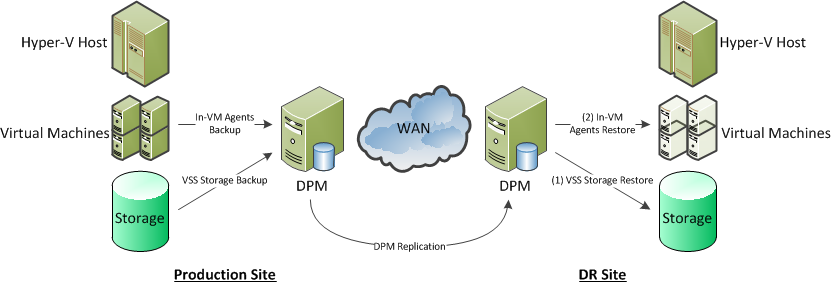
One of the cheapest around and great for the SMB is replication by System Center Data Protection Manager 2010.  With this solution you are leveraging the disk-disk functionality of your backup solution.  The primary site DPM server backs up your virtual machines.  The DR site DPM server replicates the backed up data and it’s metadata to the DR site.  During the invocation of the DR plan, virtual machines can be restored to an alternative (and completely different) Hyper-V host or cluster.

image

Using DPM is cost effective, and thanks to throttling, is light on the bandwidth and has none of the latency (distance) concerns of higher-end replication solutions.  It is a bit more time consuming for the invocation.

This is a nice economic way for an SMB or a branch/regional office to do DR.  It does require some work during invocation: that’s the price you pay for a budget friendly solution that kills two marketing people with one stone – Hey; I like birds but I don’t like marke …Moving on …

Third-Party Software Based Replication

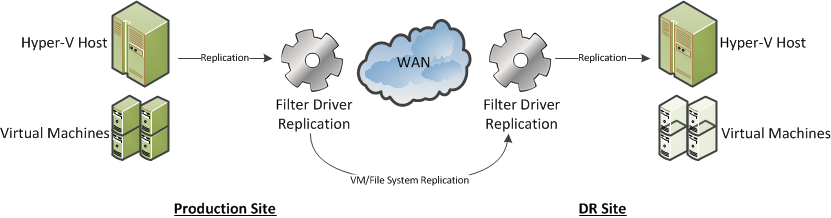
The next solution up the ladder is a 3rd party software replication solution.  At a high level there are two types:

  • Host based solution: 1 host replicates to another host.  These are often non-clustered hosts.  This works out being quite expensive.
  • Simulated cluster solution: This is where 1 host replicates to another.  It can integrate with Windows Failover Clustering, or it may use it’s own high availability solution.  Again, this can be expensive, and solutions that feature their own high availability solution can possibly be flaky, maybe even being subject to split-brain active-active failures when the WAN link fails.
  • Software based iSCSI storage: Some companies produce an iSCSI storage solution that you can install on a storage server.  This gives you a budget SAN for clustering.  Some of these solutions can include synchronous or asynchronous replication to a DR site.  This can be much cheaper than a (hardware) SAN with the same features.  Beware of using storage level backup with these … you need to know if VSS will create the volume snapshot within the volume that’s being replicated.  If it does, then you’ll have your WAN link flooded with unnecessary snapshot replication to the DR site every time you run that backup job.

image

This solution gives you live replication from the production to the DR site.  In theory, all you need to do to recover from a site failure is to power up the VMs in the DR site.  Some solutions may do this automatically (beware of split brain active-active if the WAN link and heartbeat fails).  You only need to touch backup during this invocation if the disaster introduced some corruption.

Your WAN requirements can also be quite flexible with these solutions:

  • Bandwidth: You will need at least 1 Gbps for Live Migration between sites.  100 Mbps will suffice for Quick Migration (it still has a use!).  Beyond that, you need enough bandwidth to handle data throughput for replication and that depends on change to your VMs/replicated storage.  Your backup logs may help with that analysis.
  • Latency: Synchronous replication will require very low latency, e.g. <2 MS.  Check with the vendor.  Asynchronous replication is much better at handling long distance and high latency connections.  You may lose a few seconds of data during the disaster, but it’ll cost you a lot less to maintain.

I am not a fan of this type of solution.  I’ve been burned by this type of software with file/SQL server replication in the past.  I’ve also seen it used with Hyper-V where compromises on backup had to be made.

SAN Replication

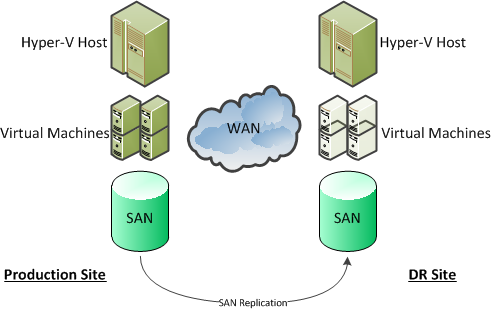
This is the most expensive solution, and is where the SAN does the replication at the physical storage layer.  It is probably the simplest to invoke in an emergency, and depending on the solution, can allow you to create multi-site clusters, sometimes with CSVs that span the sites (and you need to plan very carefully if doing that).  For this type of solutions you need:

  • Quite an expensive SAN.  That expense varies wildly.  Some SANs include replication, and some really high end SANs require an additional replication license(s) to be purchased.
  • Lots of high quality, and probably ultra low latency, WAN pipe.  Synchronous replication will need a lot of bandwidth and very low latency connections.  The benefit is (in theory) zero data loss during an invocation.  When a write happens in site A on the SAN, then it happens in site B.  Check with the manufacturer and/or an expert in this technology (not honest Bob, the PC salesman, or even honest Janet, the person you buy your servers from).

image

This is the Maybach of DR solutions for virtualisation, and is priced as such.  It is therefore well outside the reach of the SMB.  The latency limitations with some solutions can eliminate some of the benefits.  And it does require identical storage in both sites.  That can be an issue with branch/regional office to head office replication strategies, or using hosting company rental solutions.

Now let’s consider what 2012 may bring us, based purely on the couple of minutes presentation of Hyper-V replica that was at WPC11.

Hyper-V Replica Solution

I previously blogged about the little bit of technology that was on show at WPC 2011, with a couple of screenshots that revealed functionality.

Hyper-V Replica appears (in the demonstrated pre-beta build and things are subject to change) to offer:

  • Scheduled replication, which can be based on VSS to maintain application/database consistency (SQL, Exchange, etc).  You can schedule the replication for outside core hours, minimizing the impact on your Internet link on normal business operations.
  • Asynchronous replication.  This is perfect for the SMB or the distant/small regional/branch office because it allows the use of lower priced connections, and allows replication over longer distances, e.g. cross-continent.
  • You appear to be able to maintain several snapshots at the destination site.  This could possibly cover you in the corruption scenario.
  • The choice of authentication between replicating hosts appeared to allow Kerberos (in the same forest) and X.509 certificates.  Maybe this would allow replication to a different forest: in other words a service provider where equipment or space would be rented?

What Hyper-V Replica will give us is the ability to replicate VMs (and all their contents) from one site to another in a reliable and economic manner.  It is asynchronous and that won’t suit everyone … but those few who really need synchronous replication (NASDAQ and the like) don’t have an issue buying two or three Hitachi SANs, or similar, at a time.

image

I reckon DPM and DPM replication still have a role in the Hyper-V Replica (or any replication) scenario.  If we do have the ability to keep snapshots, we’ll only have a few of them.  What do you do if you invoke your DR after losing the primary site (flood, fire, etc) and someone needs to restore a production database, or a file with important decision/contract data?  Are you going to call in your tapes from last week?  Hah!  I bet that courier is getting themselves and their family to safety, stuck in traffic (see post-9/11 bridge closures or state of the roads in New Orleans floods), busy handling lots of similar requests, or worse (it was a disaster).  Replicating your back to the secondary site will allow you restore data (that is still on the disk store) where required without relying on external services.

Some people actually send their tapes to be stored at their DR site as their offsite archival.  That would also help.  However, remember you are invoking a DR plan because of an unexpected emergency or disaster.  Things will not be going smoothly.  Expect it to be the worst day of your career.  I bet you’ve had a few bad ones where things don’t go well.  Are you going to rely entirely on tape during this time frame?  Your day will only get worse if you do: tapes are notoriously unreliable, especially when you need them most.  Tapes are slow, and you may find a director impatiently mouth-breathing behind you as the tape catalogues on the backup server.  And how often do you use that tape library in the DR site?

To me, it seems like the best backup solution, in addition to Hyper-V Replica (a normal feature of the new version of Hyper-V that I cannot wait to start selling), is to combine quick/reliable disk-disk-disk backup/replication for short term backup along with tape for archival.

That’s my thinking now, after seeing just a few minutes of a pre-beta demo on a webcast.  As I said, it’s subject to change.  We’ll learn more at/after Build in September and as we progress from beta-RC-RTM.  Until then, these are musings, and not something to start strategising on.

Thinking About Buying a Windows 7 Slate PC? Check the Screen Resolution First

Then make sure you read this:

“To take advantage of the Windows 8’s side-by-side window view, that requirement rises to 1366×768”

Windows 8 will run on Windows Vista/7 hardware but you need to be aware of that graphics requirement for side-by-side.  Check the screen resolution of any slate PC you were considering to ensure that you will be able to upgrade to Windows 8 next year.

For example, have a look at these current machines:

Machine Maximum Screen Resolution Windows 8 Side-by-Side?
Asus Eee Slate EP121 1280 x 800 No
Toshiba WT310 1366 x 768 Yes, but … *1
Gigabye S1080 1024 x 600 Not a chance!
HP Slate 500 1024 x 600 or 1024 x 768 You must be kidding?
Acer Iconia Tab W500 1280 x 800 Snowball’s chance in hell
Lenovo IdeaPad P1 1280 x 800 (not RTM yet) The computer says “no”
Fujitsu STYLISTIC Q550 1920 x 1080 480p, 720 p and 1080i – Impressive! *2

That Acer is nearly €500 from a UK online reseller, and is around $549 in the USA.  I’d sure want to know that I could install Windows 8 on it next year if I spent money on it now.  I’m actually quite stunned that of the big names I found with Windows 7 slates, only Toshiba and Fujitsu have one with the graphics requirement for Windows 8 side-by-side. 

*1 It’s been rumoured that since the announcement the device, Toshiba did a 180 and cancelled their slate PC plans.  Oh well!  Kinda makes sense considering the hardware would have limited sales with anticipation of true Windows 8 tablets in 2012 and more suitable hardware with alternative OS’s right now.

My advice:

  1. If you can wait, then wait until Windows 8 is released and ARM (system on a chip) tablets are released.  You’ll get great battery life, a lighter machine, Windows 8 support, and your lap won’t be burned by a flat PC.
  2. If you want the true tablet experience now then compare the iPad2 (I have the iPad 1 and love it, watching movies on the go, or reading from Kindle) with one of the many Android devices such as the Motorola Xoom (my cousin bought one recently and he raves about it, including the ability to insert and use an SD card with media on it).  The expected Amazon Android device will also be rather interesting (October allegedly).
  3. If you really want to buy a Windows 7 slate PC (not a true tablet IMO) then check the screen resolution first and make sure it supports 1366 x 768.  That’s not looking so good.  If you’re using it for business and want to enable BitLocker then you’ll really want a TPM 1.2 (or later) chip.  But that’s a whole other conversation … *2 By the way, Fujitsu’s machine also has a TPM chip option.  I guess that makes the Fujitsu STYLISTIC Q550 the best option as an enterprise slate PC if you really must buy one now.
Technorati Tags: ,

KB2586286: SCVMM 2008/2008 R2/2008 R2 SP1 Crash With Linux Integration Services 3.1

This was quick!

“On System Center Virtual Machine Manager 2008, R2, and R2 SP1 (SCVMM), the Virtual Machine Manager Service (vmmservice.exe) crashes unexpectedly and the VM Manager event log shows Event ID 19999 and 1”.

  • VM Manager 19999: Virtual Machine Manager (vmmservice:368) has encountered an error and needed to exit the process. Windows generated an error report with the following parameters.
  • VM Manager 1:
  • System.ArgumentException: Version string portion was too short or too long.  at System.Version..ctor(String version).

Apparently this is because the kernel version returned by Key Value Pair (KVP – a new feature in the Linux ICs) is longer than is expected.

The workaround at the moment is to run this command in the Linux guest OS as root:

/sbin/chkconfig –level 35 hv_kvp_daemon off

“This will prevent the KVP service from auto starting while retaining all other functionality of hv_utils. hv_utils provides integrated shutdown, key value pair data exchange, and heartbeat features”.

Do You Buy/Sell Hyper-V and/or System Center?

If you’re a service provider (engineering/consulting/etc) and you’re involved in Hyper-V and/or System Center, or if you’re a customer that is currently buying those technologies, then pay attention.  2011/2012 is a time of interesting change and there are opportunities for customers and for service providers.

System Center

Everything in the System Center circle (a graphic used by MSFT in just about every System Center presentation) is going through an upgrade during the next 12 months:

If you’re doing a deployment of any of these products in the coming months then you really want to make sure that you or your customer will have the rights to do an upgrade next year.  Do you wait until the RTM of the new products?  Probably not; the reason you’re installing now is that there are technical or business issues that need solutions.  For the business’s sake, you solve that issue now, and upgrade later. 

Each of these new versions includes a bunch of new features or improves functionality.  That means there are more gains for the customer, and more service opportunities for the consultant.

Note that some licensing actually includes upgrade rights, e.g. OVS or OV, and System Center Management Suite.  Don’t forget that the SQL database on the back of these servers may also need an upgrade to 2008 R2 or even “Denali”, so protect them too.  And don’t forget the management licenses or CALs.

Hyper-V

If you are licensing Windows Server VMs on any virtualisation (Hyper-V, VMware, Xen) correctly then you are licensing the hosts with Enterprise or Datacenter edition, and availing of the free license benefits for VMs on those licensed hosts.  That alone can save you a fortune.  Bundle in Software Assurance for those host OSs and the saving growth is exponential.  Why would you want to do this?  Windows 8 of course!!!

Yes, you will find yourself needing/wanting to deploy Windows 8 Server virtual machines next year after the RTM.  You’ll need to license your hosts with Windows 8 to do that.  Software Assurance or upgrade rights (OVS) on your existing hosts will cover you for that.

We already know of 2 Hyper-V features that will bring technology and business benefits to the business:

  • More vCPUs: We’re getting support for at least 16 virtual CPUs per virtual machine.  That’s 16 threads of execution, meaning more powerful scale-up VMs, meaning more of the server farm can be virtualised.
  • Hyper-V Replica: Small-Medium Businesses (SMBs) struggle with implementing disaster recovery (DR) or business continuity.  This is an example of where technology and budget have an impact on business.  Get it right, and the business gains – I’m told insurance costs can go down.  Get it wrong, and the business … well … you may need to update your CV/résumé.  For a service provider, there is likely going to be a fantastic service opportunity to implement scheduled, asynchronous DR for customers in the SMB space, with modest bandwidth, and without expensive third party software or crazy costing storage solutions.

We’ll probably learn much more about Windows 8 Server at/after the Build conference in September (13-16).

Don’t forget the CALs either!  Something like the Core CAL Suite under OVS covers the end machine/user for a lot of products with Software Assurance.

Recommendation

My recommendations are:

  • Don’t “wait for 8”
  • Look at what Windows 8 and System Center can bring to you business next year, and figure out if you want that to solve your or your customers’ technology or business issues.  If so, make sure your licensing sales/purchases include rights to upgrade.

Microsoft Still Serious About Continuing the Linux Journey

It’s clear from Hyper-V’s Linux support developments over the last year that Microsoft is serious about supporting and managing Linux.  The IC’s were submitted to the Linux kernel, making Microsoft a top 5 contributor.  Then we had CentOS distro support – making a lot of people very happy.  And now we have a new 3.1 version of the IC’s that adds newer OS version support and more Hyper-V features.

Over in OpsMgr world, guidance for installing Linux agents is placed right up there with guidance for installing Windows agents.  I’ve made it no secret that I actually like how the OpsMgr team did OpsMgr 2007 Linux agents (self-serviced cross certification) way more than how they did Windows workgroup agents (flaky MOMCERTIMPORT based on custom x.509 certificate templates).

Microsoft are really taking cross-platform or heterogeneous environments seriously.

Here’s hoping for a Microsoft-written DPM agent for LAMP, and maybe a Microsoft-written ConfigMgr client/agents for Linux too!  That would complete the stack and probably help System Center Management Suite sales in those beloved Fortune 1000’s.

Linux Integration Services 3.1 for Hyper-V

I had a mad busy day with meetings at customer sites today and that’s when this great news breaks out.  Microsoft has released version 3.1 of the Linux Integration Components (or Services) for Hyper-V.

The supported operating systems for 3.1 are:

  • “Red Hat Enterprise Linux (RHEL) 6.0 and 6.1 x86 and x64 (Up to 4 vCPU)
  • CentOS 6.0 x86 and x64 (Up to 4 vCPU)”

SLES 10 SP3 and 11, and RHEL 5.2 / 5.3 / 5.4 / 5.5 still have support using Integration Services 2.1 for Hyper-V

Supported Host OS’s include:

  • “Windows Server 2008 Standard, Windows Server 2008 Enterprise, and Windows
  • Server 2008 Datacenter (64-bit versions only)
  • Microsoft Hyper-V Server 2008
  • Windows Server 2008 R2 Standard, Windows Server 2008 R2 Enterprise, and Windows
  • Server 2008 R2 Datacenter
  • Microsoft Hyper-V Server 2008 R2”

Service Packs 1 or 2 of those host OSs are supported too.

The features of V3.1 of the Linux Integration Services are:

  • “Driver support: Linux Integration Services supports the network controller and the IDE and
    SCSI storage controllers that were developed specifically for Hyper-V.
  • Fastpath Boot Support for Hyper-V: Boot devices now take advantage of the block
    Virtualization Service Client (VSC) to provide enhanced performance.
  • Timesync: The clock inside the virtual machine will remain synchronized with the clock on
    the virtualization server with the help of the pluggable time source device.
  • Integrated Shutdown: Virtual machines running Linux can be shut down from either Hyper-V
    Manager or System Center Virtual Machine Manager by using the “Shut Down” command.
  • Symmetric Multi-Processing (SMP) Support: Supported Linux distributions can use up to 4 virtual processors (VP) per virtual machine.  SMP support is not available for 32-bit Linux guest operating systems running on Windows Server 2008 Hyper-V or Microsoft Hyper-V Server 2008.
  • Heartbeat: Allows the virtualization server to detect whether the virtual machine is running
    and responsive.
  • KVP (Key Value Pair) Exchange: Information about the running Linux virtual machine can
    be obtained by using the Key Value Pair exchange functionality on the Windows Server 2008
    virtualization server”.

The really big news about the new Integration Components is that they now install using rpm, making the installation much easier (Windows admins thank you!). 

You should really take a look at the KVP feature in the PDF (on the download page).  There’s some interesting information and links on how to use it to get information, such as the Linux IC version from the VMs on your hosts using PowerShell.

Technorati Tags: ,,

Another Hyper-V Implementation Mistake –Too Many CSVs

In the PowerPoint that I posted yesterday, I mentioned that you should not go overboard with creating CSVs (Cluster Shared Volumes).  In the last two weeks, I’ve heard of several people who have.  I’m not going to play blame game.  Let’s dig into the technical side of things and figure out what should be done.

In Windows Server 2008 Hyper-V clustering, we did not have a shared disk mechanism like CSV.  Every disk in the cluster was single owner/operator.  Realistically (and required by VMM 2008) we had to have 1 LUN/cluster disk for each VM.

That went away with CSV in Windows Server 2008 R2.  We can size our storage (IOPS from MAP) and plan our storage (DR replication, backup policy, fault tolerance) accordingly.  The result is you can have lots of VMs and virtual hard disks (VHDs) on a single LUN.  But for some reason, some people are still putting 1 VM, and even 1 VHD, on a CSV.

An example: someone is worried about disk performance and they spread the VHDs of a single VM across 3 CSVs on the SAN.  What does that gain them?  In reality: nothing.  It actually is a negative.  Let’s look at the first issue:

SAN Disk Grouping is not like Your Daddy’s Server Storage

If you read some of the product guidance on big software publisher’s support site, you can tell that there is still some confusion out there.  I’m going to use HP EVA lingo because it’s what I know.

If I had a server with internal disks, and wanted to create three RAID 10 LUNs, then I would need 6 disks.

image

The first pair would be grouped together to make LUN1 at a desired RAID level.  The second pair would be grouped together to make the second LUN, and so on.  This means that LUN1 is on a completely separate set of spindles to LUN2 and LUN3.  They may or may not share a storage controller.

A lot of software documentation assumes that this is the sort of storage that you’ll be using.  But that’s not the case with a cluster with a hardware SAN. You need to use the storage it provides, and it’s usually nothing like the storage in a server.

By the way, I’m really happy that Hans Vredevoort is away on vacation and probably will miss this post.  He’d pick it to shreds Smile

Things are kind of reversed.  You start off by creating a disk group (HP lingo!)  This is a set of disks that will work as a team, and there is often a minimum number required.

image

From there you will create a virtual disk (not a VHD – it’s HP lingo for a LUN in this type of environment).  This is the LUN that you want to create your CSV volume on.  The interesting thing is that each virtual disk in the disk group spans every disk in the disk group.  How that spanning is done depends on the desired RAID level.  RAID 10 will stripe using pairs of disks, and RAID5 will stripe using all of the disks.  That gives you the usual expected performance hit/benefits of those RAID levels and the expected available amount of data.

In the below, you can see two virtual disks (LUNs) have been created in the disk group.  The benefit of this approach is that the virtual disks can benefit by having many more spindles to use.  The sales pitch is that you are getting much better performance than the alternative server internal storage.  Compare LUN1 from above (2 spindles) with vDisk1 below (6 spindles).  More spindles = more speed.

I did say it was sales pitch.  You’ve got other factors like SAN latency, controller cache/latency, vDisks competing for disk I/O, etc. But most often, the sales pitch holds fairly true.

image

If you think about it, a CSV spread across a lot of disk spindles will have a lot of horsepower.  It should provide excellent storage performance for a VM with multiple VHDs.

A MAP assessment is critical.  I’ve also pointed out in that PowerPoint that customers/implementers are not doing this.  This is the only true way to plan storage and decide between VHD or passthrough disk.  Gut feeling, “experience”, “knowledge of your network” are a bunch of BS.  If I hear someone saying “I just know I need multiple physical disks or passthrough disks” then my BS-ometer starts sending alerts to OpsMgr – can anyone write that management pack for me?

Long story short: a CSV on a SAN with this type of storage offers a lot of I/O horsepower.  Don’t think old school because that’s how you’ve always thought.  Run a MAP assessment to figure out what you really need.

Persistent Reservations

Windows Server 2008 and 2008 R2 Failover Clustering use iSCSI3 persistent reservations (PRs) to access storage.  Each SAN solution has a limit on how many PRs they can support.  You can roughly calculate what you need using:

PRs = Number of Hosts * Number of Storage * Channels per Host Number of CSVs

Let’s do an example.  We have 2 hosts, with 2 iSCSI connections each, with 4 CSVs.  That works out as:

2 [hosts] * 2 [channels] * 4 [CSVs] = 16 PRs

OK; Things get more complicated with some storage solutions, especially modular ones.  Here you really need to consult an expert (and I don’t mean Honest Bob who once sold you a couple of PCs at a nice price).  The key piece may end up being the number of storage channels.  For example, each host may have 2 iSCSI channels, but it maintains connections to each module in the SAN.

Here’s another example.  There is an iSCSI SAN with 2 storage modules.  Once again, we have 2 hosts, with 2 iSCSI connections each, with 4 CSVs.  This now works out as:

2 [hosts] * 4 [channels –> 2 modules * 2 iSCSI connections] * 4 [CSVs] = 32 PRs

Add 2 more storage modules and double the number of CSVs to 8 and suddenly:

2 [hosts] * 8 [channels –> 4 modules * 2 iSCSI connections] * 8 [CSVs] = 128 PRs

Your storage solution may actually calculate PRs using a formula with higher demands.  But the question is: how many PRs can your storage solution handle?  Deploy too many CSVs and/or storage modules and you may find that you have disks disappearing from your cluster.  And that leads to very bad circumstances.

You may find that a storage firmware update increases the number of required PRs.  But eventually you reach a limit that is set by the storage manufacturer.  They obviously cripple the firmware to create a reason to buy the next higher up model.  But that’s not something you want to hear after spending €50K or €100K on a new SAN.

They way to limit your PR requirement is to deploy only the CSVs you need.

Undoing The Damage

If you find yourself in the situation with way too many CSVs then you can use SCVMM Quick Storage Migration to move VMs onto fewer, larger CSVs, and then remove the empty CSVs.

Recommendations

Slow down to hurry up.  You MUST run an assessment of your pre-virtual environment to understand what storage you buy.  You also use this data as a factor for planning CSV design and virtual machine/VHD placement.  Like my old woodwork teacher used to say: “measure twice and cut once”.

Take that performance requirement information and combine it with backup policy (1 CSV backup policy = 1 or more CSVs, 2 CSV backup policies = 2 or more CSVs, etc), fault tolerance (place clustered or load balanced VMs on different CSVs), and DR policy (different storage level VM replication policies requires different CSVs).