Microsoft released SP2 for SQL 2008 last night. You can learn more about it here. You can also download it:
Month: September 2010
Virtual Machine Servicing Tool 3.0 RTM
The RTM Virtual Machine Servicing Tool 3.0 is now available for download. With it you can:
• Offline virtual machines in a SCVMM library.
• Stopped and saved state virtual machines on a host.
• Virtual machine templates.
• Offline virtual hard disks in a SCVMM library by injecting update packages.
Bad news for beta testers: the feature for servicing patching Hyper-V hosts was removed from VMST 3.0. That’s a pity because I thought it was the best feature. On the plus side, we finally can patch VMM templates.
Oracle On Their Internal Systems Management
I just read a story about how Oracle consolidated their internal systems management They decided to invest in a legacy-style solution based on SNMP and ping. One of the things I noticed was that Oracle wanted to do lots of customization, be able to get access to the underneath data so they could manipulate it, integrate it, etc.
This is how not to do monitoring in a modern IT infrastructure.
In 1st year of college, we were taught about different ways you could buy software:
- Write it yourself: Takes lots of time/skills and has hidden longterm costs.
- Buy or download something cheap off the shelf that does 80% of what you need. You spend a very long time trying to get the other 20%. It ends up not working quite right and it costs you a fortune, especially when it fails and you have to replace it – of course, the more common approach is to live with the failure and pitch a story that it is fantastic. I call this the “I’m in government” approach.
- Spend a little bit more money up front, buy a solution that does what you need, is easily customizable, and will work.
In Ireland, approach number 2 is the most commonly taken road. Ping/SNMP cheapware is what most organizations waste their money and time on. A server responding to ping does not make it healthy. A green icon for a server that is monitored by a few SNMP rules that took you an age to assemble does not make it healthy.
Instead what is needed is a monitoring solution that has indepth expertise in the network … all of it … from the hardware, up through to the applications, has ana additional client perspective, and can assemble all of that into the (ITIL) service point of view. Such a solution may cost a little buit more but:
- It works out of the box, requiring just minor (non-engineering) changes along the way.
- The monitoring expertise is usually provided by the orginal vendor or an expert third party.
- The solution will be cheaper in the long term.
No guesses required to tell which solution I recommend, based on experience. I’ve tried the rest: I was certified in CA’s Unicenter (patch-tastic!), I got a brief intro to BMC Patrol, I’ve seen teams of Tivoli consultants fail to accomplish anything after 6 months of efforts, and I’ve seen plenty of non-functional cheapware along the way. One solution always worked, out of the box, and gave me results within a few hours of effort. System Center Operations Manager just works. There’s lots of sceptics and haters but, in my experience, they usually have an agenda, e.g. they were responsible for buying the incumbant solution that isn’t quite working. There is also the cousin of OpsMgr, SCE 2010, for the SME’s.
Doing a Windows 7 Assessment in the Real World
Last night I talked about how I needed to use ConfigMgr to help with my MAP assessment. Today, I had to drop MAP.
I have to be realistic with this project. The site has a mix of PCs. Some are old and some are new. There are 32-bit and 64-bit processors. Some users require 4 GB RAM or more (and thus 64 bit processors). And as with everyone, money cannot just be thrown at a problem. In this project, PCs with what we see as inferior processors will be recycled (or donated) after being securely wiped. New PCs will be purchased, prepared, and given to power users. Their old PCs will be reconditioned and re-used. PCs with not enough RAM or disk will be upgraded where possible. 64-bit operating systems will be used where possible but it is likely that most will be 32-bit (unless more than 3 GB RAM is required).
And this is where MAP fails:
- It doesn’t tell me what size a disk is, only that it has a certain amount of free space.
- It doesn’t give me information about 64-bit processor functionality.
- It doesn’t give me hardware model information so that I can check if I can put more than 2 GB RAM into the chassis.
I also had another problem with MAP. Remember that this is a site where there are lots of old machines with old builds. Remote access of WMI (even with all the permissions and policies configured) doesn’t seem to work. Plus people are in and out with laptops so I have to time my scan perfectly.
So I went back to ConfigMgr and its reports. The benefit is that an installed agent will do the hardware inventory and report back to the ConfigMgr server. No remote WMI required. This makes it more reliable. I also get a scan when the agent is installed. And I’ve done that 3 ways:
- ConfigMgr push.
- Start-up script.
- Sneaker-net: This is a crusty network and I noticed that the agent push was not as successful as it should have been.
There are some basic reports for Vista and Windows 7 assessments. I stress basic. The same problems exist here. But the reports gave me a template that I could work with. I started off by creating a report that queries for the number of each of the different models of computer on the network. That gives me the information I need to check hardware maximum capacities. I then created a collection that contains all agent managed desktops and laptops. I took the Windows 7 assessment report, cloned it, and rewrote the SQL query for the report. I then ran that report against my new managed client computer collection. It gives me the following for each computer:
- Computer name
- Computer model
- CPU model, speed, and 64-bit support
- Physical memory
- Physical disk size
I’ve enough information there to plan everything I need. I can dump it into Excel and work away to create my reports. I can price hardware component upgrades and computer replacements. I can plan the OS deployment. It would have been nice to do this with MAP but unfortunately the basic nature of the reports and the lack of an agent (for circumstances such as those that I’ve encountered on this project) did not help.
ConfigMgr continues to rock! Plus I was able to show it off to some of the folks at the site.
Using MAP in a Messy Network
I’ve been doing an assessment for a Windows 7 deployment in a network that’s not had any regular maintenance in a long time. For example, there are 400+ computer accounts with around 100 real machines. I can’t even use oldcmp to clean up because some of those “stale” account are associated with machines that are archived/stored for old projects that might need to be recovered. I also have an issue where machines are not responding as expected to MAP, despite all the policies being in place. Solution? The Swiss Army Knife of systems management: System Center Configuration Manager.
I set up a ConfigMgr (licenses are there) and deployed an agent to all machines. That had limited success as expected (see above). I then set up a start up script to hit the machines when the reboot – which is not very often (it is a bit of a “wild garden” network). The perk of this is that I get a client install that will audit machines are report back information, regardless of firewall, etc.
Over time the number of managed agents has doubled, giving me a good sample to work with. I was able to run a report to get the computer names of all the desktop machines. Now I took that CSV and converted it into a text file, each line having a computer name. That’s perfect for a text file discovery in MAP.
I ran a discovery and assessment using that and got much better results than before. It’s still not perfect and that’s because we are in the real world. Many of the machines are offline, either out of the office or turned off. Some machines haven’t been rebooted or powered up to get the ConfigMgr agent. So there will be some sneaker net to take care of that.
And that’s how I’ve done an assessment in a wild network that a simple MAP deployment would not have succeeded in.
Certificate Expiration May Cause Mouse/Video Refresh Issues With the Hyper-V Virtual Machine Connection
I’m not going to write the full post on this issue and fix. Instead, visit Mark Wilson’s blog where he has documented the issue and fix.
Survey on How Irish Companies Would Spend IT Budget
TechCentral.ie did a small survey on how Irish organisations would spend their IT budget. They question they were asked was “If you had 50% of your total IT budget to spend on one area alone, what would it be?”
The results were:
- Infrastructure: 61%
- Virtualisation/(Public/Private)Cloud Computing: 24%
- Applications: 15%
I was somewhat surprised by the results, and not at the same time. Here’s why.
Everything we’ve been hearing since the recession started in 2008 (the slide really started in August 2007) is that business could optimise their operations by implementing business intelligence applications to improve their decision making. These are big projects costing hundreds of thousands and even millions of Euros. But this survey tells us that Irish IT only would spend 15% of their budget on this area. This surprised me.
Cloud computing/virtualisation also ranked pretty still brings in a quarter of the budget. One would expect that everyone should have something done on the virtualisation front by now. It’s clear that even a small virtualisation project can save an organisation a lot of money on hardware support contracts and power consumption (remember that we were recently ranked as the second most expensive country in Europe to buy electricity in and we have an additional 5% Green Party tax coming for power). Getting 10-1 consolidation ratios will drive that bill down. Those on an EA or similar subscription licensing can even see similar consolidation of their MS licensing, especially with Hyper-V or XenServer. Putting that argument to a financial controller in a simple 1 page document will normally get a quick approval.
But, I’m finding that many have either not done any virtualisation at all yet or have literally just dipped their toes in the water by deploying one or two standalone hosts as point solutions, a minor part of a mainly physical server infrastructure. There is still a lot of virtualisation work out there. And as regualr readers will know, I see a virtualisation project as being much more than just Hyper-V, XenServer, or ESX.
61% of respondents said they would spend 50% of their budget on infrastructure. That could mean anything to be honest. I expect that most servers out there are reaching their end of life points. Server sales have been pretty low since 2007. We’re in the planning stages for 2011. 3 year old hardware is entering the final phases of support from their manufacturers. Those with independent servicing contracts will see the costs rise significantly because replacement components will become more expensive and harder to find, thus driving up costs and risks for the support service providers.
I was at a HP event in 2008 where we were told that the future in hardware was storage. I absolutely agree. Everyone I seem to talk to has one form of storage challenge or another. Enterprise storage is expensive and it’s gone as soon as it is installed. Virtualisation requires better storage than standalone servers, especially if you cluster the hosts and use some kind of shared storage.
DR is still a hot topic. The events of 2001 in New York or the later London bombings did not have the same effect here as it did in those cities or countries. People are still struggling. Virtualisation is making it easier (it’s easier to replace storage or VHD/MVDK files than to replicate an N-tier physical application installation) but there is a huge technical and budget challenge when it comes to bandwidth. Our electricity is expensive but that’s nothing to our bandwidth. For example, a (up to) 3MB domestic broadband package (with phone rental) package is €52/month in Ireland, where available.
The thing that I believe is missing is systems management. I recently wrote in a document that an IT infrastructure was like a lawn. If you manage it then it is tidy and under control. If you don’t then it becomes full of weeds and out of control. Eventually it reaches a point where it will be easier to rip out the lawn completely and reseed the lawn, taking up time and money. Before virtualisation was a hot topic and I was still contracting before going in the cloud/hosting business, most organisations here were clueless when it came to systems management. Many considered a continuous ping to be monitoring. Others would waste money and effort on dodgy point solutions to do things like push out software or audit infrastructure. Those who bought System Center failed to hire people who knew what to do with it, e.g. I twice trained junior helpdesk contractors in a bank (that I now indirectly own shares in because I’m a tax payer) to use SMS 2003 R2 to deploy software. They were clueless at the start and remained that way because they were too junior. Maybe those organisations realise what mistakes they’ve made and realise that they need to take control. Many virtualisation solutions will be mature by now. That means people have done the VMware ESX thing and had VM sprawl. They’ve also learned that vSphere, just like Microsoft’s VMM by itself is not management for a complete infrastructure. You need to manage everything, including the network, servers, storage, virtualisation, operating systems, services and applications.
EDIT:
I think there’s also a growing desire to deal with the desktop, much for the same reasons as I mentioned with the server. Desktops right now are running possibly 5 year old XP images. A lot of desktop hardware out there is very old. There are business reasons to deploy a newer operating system like Windows 7. Solutions like session virtualisation, application virtualisation, desktop virtualisation, and client virtualisation are all opening up new opportunities for CIOs to tackle technical and business issues. The problem for them is that all of this is new technology and they don’t have the know-how.
There is a lot of potential out there if you’re in the services industry. But maybe all of this is moot. We’re assuming people have a budget. Heck, Ireland might not even have an economy after this week!
How Many Virtual Machines on a Dynamic Memory Host?
I’ve seen people asking what the VM capacity of a Hyper-V host would be with dynamic memory enabled on the virtual machines. Well … that depends.
I can visualise virtual machines being configured in 3 ways:
- Disabled: That means virtual machines will be set up with static memory. You configure the VM with 2 GB of RAM and it will consume 2 GB of RAM … plus up to 32 MB of overhead for the 1st 1 GB and up to 8 MB overhead RAM for each additional GB after that. I can see this being used where users of VM’s (for billing reasons) or applications (for specification verification reasons) expect to see the full allocation of RAM.
- Optimized: You will set up the start up RAM setting to be the minimum required for the virtual machine’s guest operating system (and I recommend including the amount required for normal operations) and the maximum RAM to be what is required to deal with peak usage. For example, a W2008 R2 web server might be set up to boot up with 2 GB start up RAM and with 4 GB maximum RAM. This will probably be the most common configuration.
- Maximized: I think this will be a niche configuration. In this scenario the virtual machine is set up with a start up RAM setting as with the optimized approach. However, the maximum RAM setting will be set up to be the maximum that a virtual machine or the host can support. For example, a 32 GB host can realistically support a virtual machine with 29 GB RAM. And remember that a Hyper-V virtual machine can support up to 64 GB RAM. This is a more elastic computing approach where you need to ensure that virtual machines can get as much memory as they need. Just be wary that some applications will eat up whatever you supply either because of memory leaks or bad development practices.
The disabled approach is pretty easy to calculate. Just use my previously shared spreadsheet. My rule of thumb is take the physical memory of the host, subtract 3 GB RAM and what remains is what you typically have for virtual machines. You’ll want to allow for more than 3 GB on huge hosts.
It gets a little more difficult with Dynamic Memory enabled. To be honest, I think it’s going to be a hell of a lot more difficult to size hardware or determine host capacity. Just how do you know how much memory is required for virtual machines with a variable amount of memory if you don’t already have them to monitor? You can use the performance metrics results of a MAP (or other) assessment (you should always do an assessment at the start of your Hyper-V project) to figure out the average memory utilisation of the machines that you are going to convert into Hyper-V virtual machines. Sum up the averages, maybe add a percentage and bingo; that will give you an idea of how to size the RAM of your host hardware.
It gets even more complicated if you mix your virtual machine configuration types. Some might be set up with static memory, some with Dynamic Memory set up in what I’ve called optimized and/or maximized configurations. Calculating the host capacity is now going to be very complicated. You’re getting into spreadsheet country.
Newest Book: Mastering Windows 7 Deployment
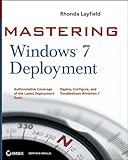
No sooner than Mastering Hyper-V Deployment is done, I’m working on Mastering Windows 7 Deployment. I’m contributing 6 chapters to this one and I’m half way through writing the draft editions. This book is providing all the steps and all the methods to do a Windows 7 deployment project using the MS product set. I don’t know what the schedule is at the moment. I’d suspect early next year will be the RTM.
Springboard Learning Portal
Doing a Windows 7 deployment project? Heck, are you doing a Windows Server 2008 R2 build project (the deployment and imaging solutions are the same)? Get yourself over to the Microsoft Springboard site where you can learn all about the deployment technologies and solutions. Springboard has added a new site: the Springboard Learning Portal:

Quoting Stephen L. Rose: “The Springboard Windows 7 Learning Deployment Portal is designed to guide IT Pro’s deployment education by:
- Enabling individuals to measure their proficiency and knowledge against key benchmarks
- Identifying specific skills gaps or areas of weakness to address
- Create personalized learning plans through direction to resources based on the areas and scope of knowledge gaps
- Provide informal knowledge checks through learning and re-assess areas initially identified as knowledge gaps
- Recognizing critical Windows 7 deployment skills and helping to build IT Pro confidence to deploy Windows 7
The Deployment Learning Portal content and methodology helps to bridge the gap between Springboard’s online managed experience content and formal training”.