2010
01.31

I’ve previously mentioned that Windows Server 2008 Hyper-V is secure.  It was designed from the ground up to be secure.  The German Federal government certainly thought so.  I’ve had excellent experiences.  But why take my word?

There’s one country out there that takes security more seriously than any other.  I’m not talking about the USA, the UK, China or France, and certainly not Ireland.  It’s Israel.  And what part of the nation do you think would value reliability more than anything else?  Yeap, the military.  The Israeli Defence Forces (IDF) just spent a bunch of money to deploy a Hyper-V cluster.  If it’s secure and reliable enough for them then it should be for you too.

2010
01.30

Why Joe_Elway?

I’ve heard this question some many times.  Where does it come from and why not use Aidan_Finn instead?

It goes back to when I was in college.  We first got Internet access when I was in 3rd year in ‘94.  Our main computing platform was VAX VMS on green screens.  That year we got access to UNIX on those same green screens for C/C++ development and access to some new fangled thing called “The Interweb” or “World Wide Net” or something.  I remember we got a few classes on things like FTP, Telnet, Gopher, etc.  There was all this stuff about CERN, and …, and …, and to be honest it was boring.  Then the lecturer announced we had access to this stuff now.

So rather unexcitedly, over the next few weeks we signed on and started accessing Internet services from command prompt only green screens.  Graphics came in the form of solid green blocks or ASCII “art”.  We tried out the different tools that were scribbled down in our class notes; this lecturer pretty much ran exams every month and was very detail oriented.  2 weeks of classes on the Internet meant that we needed to know about this stuff.

One of the guys told us of something he was logging into.  He was using Telnet to log into a Bulletin Board System (BBS) called ISCABBS in the USA.  He said lots of people were on it; in fact there were 1000 people logging in simultaneously.  That was HUGE back then.  There was a huge user database too.  They were all “chatting” on this pre-forum platform about subjects of every kind.  Word of it spread like wildfire in the college and pretty much half the people in the labs were using it.

Because the user database was so huge it was a challenge to find a username.  We’d been advised not to use our real names.  After lots of failed attempts to find a username I sat back and thought.  Joe Montana was my favourite player in the NFL.  Not far behind was John Elway.  How about merging those?  That was probably original.  So Joe_Elway was born.

After college, Joe kinda disappeared.  My online presence for a long time was E-Mail.  Time goes by and things change.  I found myself looking for a username to sign onto forums either to chat, get help or give help.  I needed a username and Joe_Elway was back.  I ended up starting this blog on Microsoft Spaces.  I was known by a few people out there as Joe_Elway so I stuck with the moniker for the blog.  Eventually I relented and signed onto Twitter and @joe_elway appeared.

And that’s the story.

2010
01.29

Microsoft’s Mike Briggs has just blogged about 2 ways to move a VMM database from one server to another.  I’ll hopefully be putting this to the test in the coming months.

Technorati Tags:
2010
01.29

I’m lucky enough to be a part of Microsoft’s System Center Influencers group.  VMM is one of my core things.  I’m a user of OpsMgr and I’ll blog about what I learn and do with that too.  I used to be a ConfigMgr MVP but I’ve fallen out of step with it because of changes in work but I like to stay in touch.  We don’t use DPM as a core product but Hyper-V keeps it interesting for me.  And that’s just the start of System Center!

The folks behind System Center Influencers have a blog feed gathering content from the members.  You can see our blog posts in one central point.  Check it out.

2010
01.29

A lot of people who will be doing this have never set up a cluster before.  They know of clusters from stories dating back from the NT4 Wolfpack, Windows Server 2000 and Windows Server 2003 days when consultants made a fortune from making things like Exchange and SQL on 5 days per cluster projects.

Hyper-V is getting more and more widespread.  And that means setting up highly available virtual machines (HAVM) on a Hyper-V cluster will become more and more common.  This is like Active Directory.  Yes, it can be a simple process.  But you have to get it right from the very start or you have to rebuild from scratch.

So what I want to do here is walk through what you need to do in a basic deployment for a Windows Server 2008 R2 Hyper-V cluster running a single Cluster Shared Volume (CSV) and Live Migration.  There won’t be screenshots – I have a single laptop I can run Hyper-V on and I don’t think work would be too happy with me rebuilding a production cluster for the sake of blog post screenshots :-)  This will be rough and ready but it should help.

Microsoft’s official step by step guide is here.  It covers a lot more detail but it misses out on some things, like “how many NIC’s do I need for a Hyper-V cluster?”, “how do I set up networking in a Hyper-V cluster?”, etc.  Have a read of it as well to make sure you have covered everything.

P2V Project Planning

Are you planning to convert physical machines to virtual machines using Virtual Machine Manager 2008 R2?  If so and you are using VMM 2008 R2 and Operations Manager 2007 (R2), deploy them now (yes, before the Hyper-V cluster!) and start collecting information about your server network.  There are reports in there to help you identify what can be converted and what your host requirements will be.   You can also use the free MAP toolkit for Hyper-V to do this.  If your physical machine uses 50% of a quad core Xeon then the same VM will use 50% of the same quad core Xeon in a Hyper-V host (actually, probably a tiny bit more to be safe).

Buy The Hardware

This is the most critical part.  The requirements for Hyper-V are simple:

  • Size your RAM.  Remember that a VM has a RAM overhead of up to 32MB for the first GB of RAM and up to 8MB for each additional GB of RAM in that VM.
  • Size the host machine’s “internal” disk for the parent partition or host operating system.  See the Windows Server 2008 R2 requirements for that.
  • The CPU(s) should be x64 and feature assisted virtualisation.  All of the CPU’s in the cluster should be from the same manufacturer.  Ideally they should all be the same spec but things happen over time as new hardware becomes available and you’re expanding a cluster.  There’s a tick box for disabling advanced features in a virtual machine’s CPU to take care of that during a VM migration.
  • It should be possible to enable Data Execution Prevention (DEP) in the BIOS and it should work.  Make that one a condition of sale for the hardware.  DEP is required to prevent break out attacks in the hypervisor.  Microsoft took security very, very seriously when it came to Hyper-V.
  • The servers should be certified for Windows Server 2008 R2.
  • You should have shared storage that you will connect to the servers using iSCSI or Fibre Channel.  Make sure the vendor certifies it for Windows Server 2008 R2.  It is on this shared storage (a SAN of some kind) that you will store your virtual machines.  Size it according to your VM’s storage requirements.  If a VM has 2GB of RAM and 100GB of disk then size the SAN to be 102GB plus some space for ISO images (up to 5GB) and some free space for a healthy volume.
  • The servers will be clustered.  That means you should have a private network for the cluster heartbeat.  A second NIC is required in the servers for that.
  • The servers will need to connect to the shared storage.  That means either a fibre channel HBA or a NIC suitable for iSCSI.  The faster the better.  You may go with 2 instead of 1 to allow MPIO in the parent partition.  That allows storage path failover for each physical server.
  • Microsoft recommends a 4th NIC to create another private physical network between the hosts.  It would be used for Live Migration.  See my next page link for more information.  I personally don’t have this in our cluster and have not had any problems.  This is supported AFAIK.
  • Your servers will have virtual machines that require network access.  That requires at least a third NIC in the physical servers.  A virtual switch will be created in Hyper-V and that connects the virtual machines to the physical network.  You may add a 4th NIC for NIC teaming.  You may add many NIC’s here to deal with network traffic.  I’ve talked a good bit about this, including this post.  Just search my blog for more.
  • Try get the servers to be identical.  And make sure everything has Windows Server 2008 R2 support and support for failover clustering.
  • You can have up to 16 servers in your cluster.  Allow for either N+1 or N+2.  The latter is ideal, i.e. there will be capacity for two hosts to be offline and everything is still running.  Why 2?  (a) stuff happens in large clusters and Murphy is never far away.  (b) if a Windows 8 migration is similar to a Windows Server 2008 R2 migration then you’ll thank me later – it involved taking a host from the old cluster and rebuilding it to be a host in a new cluster with the new OS.  N+1 clusters lost their capacity for failover during the migration unless new hardware was purchased.
  • Remember that a Hyper-V host can scale out to 64 logical processors (cores in the host) and 1TB RAM. 

The Operating System

This one will be quick.  Remember that the Web and Standard editions don’t support failover clustering.

  • Hyper-V Server 2008 R2 is free, is based on the Core installation type and adds Failover Clustering for the first time in the free edition.  It also has support for CSV and Live Migration.  It does not give you any free licensing for VM’s.  I’d only use it for VDI, Linux VM’s or for very small deployments.
  • Windows Server 2008 R2 Enterprise Edition supports 8 CPU sockets and 2TB RAM.  What’s really cool is that you get 4 free Windows Server licenses to run on VM’s on the licensed host.  A host with 1 Enterprise license effectively gets 4 free VM’s.  You can over license a host too: 2 Enterprise licenses = 8 free VM’s.  These licenses are not transferable to other hosts, i.e. license 1 host and run the VM’s on another host.
  • Windows Server 2008 R2 DataCenter Edition allows you to reach the maximum scalability of Hyper-V, i.e. 64 logical processors (cores in the host) and 1TB RAM.  DataCenter edition as a normal OS has greater capacities than this; don’t be fooled into thinking Hyper-V can reach those.  It cannot do that despite what some people are claiming is supported.

All hosts in the cluster should be running the same operating system and the same installation type.  That means all hosts will be either Server Core or full installations.  I’ve talked about Core before.  Microsoft recommends it because of the smaller footprint and less patching.  I recommend a full installation because the savings are a few MB of RAM and a few GB of disk.  You may have fewer patches with Core but they are probably still every month.  You’ll also find it’s harder to repair a Core installation and 3rd party hardware management doesn’t have support for it.

Install The Hardware

First thing’s first, get the hardware installed.  If you’re unsure of anything then get the vendor to install it.  You should be buying from a vetted vendor with cluster experience.  Ideally they’ll also be a reputed seller of enterprise hardware, not just honest Bob who has a shop over the butchers.  Hardware for this stuff can be fiddly.  Firmwares across the entire hardware set all have to be matching and compatible.  Having someone who knows this stuff rather than searches the Net for it makes a big difference.  You’d be amazed by the odd things that can happen if this isn’t right.

As the network stuff is being done, get the network admins to check switch ports for trouble.  Ideally you’ll use cable testers to test any network cables being used.  Yes, I am being fussy but little things cause big problems.

Install The Operating Systems

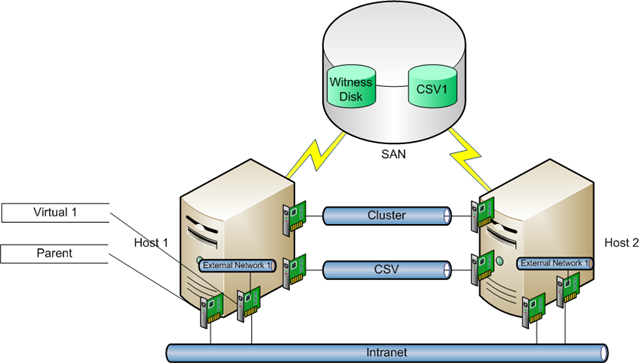
Make sure they are all identical.  An installation that is done using using an answer file helps there.  Now you should identify which physical NIC maps to which Local Area Connection in Windows.  Take care of any vendor specific NIC teaming – find out exactly what your vendor prescribes for Hyper-V.  Microsoft has no guidance on this because teaming is a function of the hardware vendor.  Rename each Local Area Connection to it’s role, e.g.

  • Parent
  • Cluster
  • Virtual 1

What you’ll have will depend on how many NIC’s you have and what roles you assigned to them.  Disable everything except for the first NIC.  That’s the one you’ll use for the parent partition.  Don’t disable the iSCSI ones.

Patch the hosts for security fixes.  Configure the TCP/IP  for the parent partition NIC.  Join the machines to the domain.  I strongly recommend setting up the constrained delegation for ISO file sharing over the network.

Do whatever antivirus you need to.  Remember you’ll need to disable scanning of any files related to Hyper-V.  I personally advise against putting AV on a Hyper-V host because of the risks associated with this.  Search my blog for more.  Be very sure that the AV vendor supports scanning files on a CSV.  And even if they do, there’s no need to be scanning that CSV.  Disable it.

Enable the Cluster NIC for the private heartbeat network.  This will either be a cross over cable between 2 hosts in a 2 host cluster or a private VLAN on the switch dedicated just to these servers and this task.  Configure TCP/IP on this NIC on all servers with an IP range that is not routed on your production network.  For example, if your network is 172.168.1.0/16 then use 192.168.1.0/24 for the heartbeat network.  Ping test everything to make sure every server can see every other server.

If you have a Live Migratoin NIC (labelled badly as CSV in my examples diagrams) then set it up similarly to the Cluster NIC.  It will have it’s own VLAN and it’s own IP range, e.g. 192.168.2.0/24.

Enable the Virtual NIC.  Unbind every protocol you can from it, e.g. if using NIC teaming you won’t unbind that.  This NIC will not have a TCP configuration so IPv4 and IPv6 must be unbound.  You’re also doing this for security and simplicity reasons.

Here’s what we have now:

image

Once you have reached here with all the hosts we’re ready for the next step.

Install Failover Clustering

You’ll need to figure out how your cluster will gain a quorum, i.e. be able to make decisions about failover and whether it is operational or not.  This is to do with host failure and how the remaining hosts vote.  It’s done in 2 basic ways.  There are actually 4 ways but it breaks down to 2 ways for most companies and installations:

  1. Node majority: This is used when there are an odd number of hosts in the cluster, e.g. 5 hosts, not 4.  The hosts can vote and there will always be a majority winner, e.g. 3 to 2.
  2. Node majority + Disk: This is used when there are an even number of hosts, e.g. 16.  It’s possible there would be an 8 to 8 vote with no majority winner.  The disk acts as a tie breaker.

Depending on who you talk to or what GUI in Windows you see, this disk is referred to either as a Witness Disk or a Quorum Disk.  I recommend creating it in a cluster no matter what.  Your cluster may grow or shrink to an uneven number of hosts and may need it.  You can quickly change the quorum configuration based on the advice in the Failover Clustering administration MMC console. 

The disk only needs to be 500MB size.  Create it on the SAN and connect the disk to all of your hosts.  Log into a host and format the disk with NTFS.  Label it with a good name like Witness Disk.

I’m ignoring the other 2 methods because they’ll only be relevant in stretch clusters than span a WAN link and I am not talking about that here.

Use Server Manager to install the role on all hosts.  Now you can set up the cluster.  The wizard is easy enough.  You’ll need a computer name/DNS name for your cluster and an IP address for it.  This is on the same VLAN as the Parent NIC in the hosts.  You’ll add in all of the hosts.  Part of this process does a check on your hardware, operating system and configuration.  If this passes then you have a supported cluster.  Save the results as a web archive file (.MHT).  The cluster creation will include the quorum configuration.  If you have an even number of hosts then go with the + Disk option and select the witness disk you just created.  Once it’s done your cluster is built.  It is not hard and only takes about 5 to 10 minutes.  Use the Failover Clustering MMC to check the health of everything.  Pay attention to the networks.  Stray networks may appear if you didn’t unbind IPv4 or IPv6 from the virtual network NIC in the hosts.

If you went with Node Majority then here’s my tip.  Go ahead and launch the Failover Clustering MMC.  Add in the storage for the witness disk.  Label it with the same name you used for the NTFS volume.  Now leave it there should you ever need to change the quorum configuration.  A change is no more than 2 or 3 mouse clicks away.

Now you have:

image

Install Hyper-V

Enable the Hyper-V role on each of your hosts, one at a time.  Make sure the logs are clean after the reboot.  Don’t go experimenting yet; Please!

Cluster Shared Volume

CSV is seriously cool.  Most installations will have most, if not all, VM’s stored on a CSV.  CSV is only supported for Hyper-V and not for anything else as you will be warned by Microsoft.

Set up your LUN on the physical storage for storing your VM’s.  This will be your CSV.  Connect the LUN to your hosts.  Format the LUN with NTFS.  Set it to use GPT so it can grow beyond 2TB.  Label it with a good name, e.g. CSV1.  You can have more than 1 CSV in a cluster.  In fact, a VM can have its VHD files on more than one CSV.  Some are doing this to attempt to maximise performance.  I’m not sold that will improve performance but you can test it for yourself and do what you want here.

DO NOT BE TEMPTED TO DEPLOY A VM ON THIS DISK YET.  You’ll lose it after the next step.

Use the Failover Clustering MMC to add the disk in.  Label it in Failover Clustering using the same name you used when you formatted the NTFS volume.  Now configure the the CSV.  When you’re done you’ll find the disk has no drive letter.  In fact, it’ll be “gone” from the Windows hosts.  It’ll actually be mounted as a folder on the C: drive of all of your hosts in the cluster, e.g. C:\ClusterStorage\Volume1.  This can be confusing at first.  It’s enough to know that all hosts will have access to this volume and that your VM’s are not really in your C: drive.  They are really on the SAN.  C:\ClusterStorage\Volume1 is just a mount point to a letterless drive.

Now we have this:

image

Virtual Networking

Hopefully you have read the previously linked blog post about networking in Hyper-V.  You should be fully educated about what’s going on here.

Here’s the critical things to know:

  • You really shouldn’t put private or internal virtual networks on a Hyper-V cluster when using more than one VM on those virtual networks.  Why?  A private or internal virtual network on host A cannot talk with a private or internal network on host B.  If you set up VM1 and VM2 on such a virtual network on host A what happens when one of those VM’s is moved to another host?  It will not be able to talk to the other VM.
  • If you create a virtual network on one host then you need to create it on all hosts.  You also must use identical names across all hosts.  So, if I create External Network 1 on host 1 then I must create it on host 2.

Create your virtual network(s) and bind them to your NIC’s.  In my case, I’m binding External Network 1 to the NIC we called Virtual 1.  That gives me this:

image

All of my VM’s will connect to External Network 1.  An identically named external virtual network exists on all hosts.  The physical Cluster 1 NIC is switched identically on all servers on the physical network.  That means if VM1 moves from host 1 to host 2 it will be able to reconnect to the virtual network (because of the identical name) and be able to reach the same places on the physical network.  What I said for virtual network names also applies to tags and VLAN ID’s if you use them.

Get Busy!

Believe it or not, you have just built a Hyper-V cluster.  Go ahead and build your VM’s.  Use the Failover Clustering MMC as much as possible.  You’ll see it has Hyper-V features in there.  Test live migration of the VM between hosts.  Do continuous pings to/from the VM during a migration.  Do file copies during a migration (pre-Vista OS on the VM is perfect for this test).  Make sure the VM’s have the integration components/integration services/enlightenments (or additions for you VMware people) installed.  You should notice no downtime at all.

Remember that for Linux VM’s you need to set the MAC in the VM properties to be static or they’ll lose the binding between their IP configuration and the virtual machine NIC after a migration between hosts.

Administartion of VM’s

I don’t know why some people can’t see or understand this.  You can enable remote desktop in your VM’s operating system to do administration on them.  You do not to use the Connect feature in Hyper-V Manager to open the Virtual Machine Connection.  Think of that tool as your virtual KVM.  Do you always use KVM to manage your physical servers?  You do?  Oh, poor, poor you!  You know there’s about 5 of you out there.

Linux admins always seem to understand that they can use SSH or VNC.

Virtual Machine Manager 2008 R2

VMM 2008 R2 will allow you to manage a Hyper-V cluster(s) as well as VMware and Virtual Server 2005 R2 SP1.  There’s a workgroup edition for smaller clusters.  It’s pretty damned powerful and simplifies many tasks we have to do in Hyper-V.  Learn to love the library because that’s a time saver for creating templates, sharing ISO’s (see constrained delegation above during the OS installation), administration delegation, self service portal, etc.

You can install VMM 2008 R2 as a VM on the cluster but I don’t recommend it.  If you do, then use the Failover Clustering and Hyper-V consoles to manage the VMM virtual machine.  I prefer that VMM be a physical box.  I hate the idea of chicken and egg scenarios.  Can I think of one now?  No, but I’m careful.

To deploy the VMM agent you just need to add the Hyper-V cluster.  All the hosts will be imported and the agent will be deployed.  Now you can do all of your Hyper-V management via PowerShell, the VMM console and the Self Service console.

You also can use VMM to do a P2V conversion as mentioned earlier.  VSS capable physical machines that don’t run transactional databases can be converted using a live or online conversion.  Those other physical machines can be converted using an offline migration that uses Windows PE (pre-installation environment).  Additional network drivers may need to be added to WinPE.

You can enable PRO in your host group(s) to allow VMM to live migrate VM’s around the cluster based on performance requirements and bottlenecks.  I have set it to fully automatic on our cluster.  Windows 2008 quick migration clusters were different: automatic moves meant a VM could be offline for a small amount of time.  Live Migration in Windows Server 2008 R2 solves that one.

Figure out your administration model and set up your delegation model using roles.  Delegated administrators can use the VMM console to manage VM’s on hosts.  Self service users can use the portal.

Populate your library with hardware templates, VHD’s and machine templates.  Add in ISO images for software and operating systems.  An ISO create and mounting tool will prove very useful.

Operations Manager 2008 R2

My advice is “YES, use it if you can!”.  It’s by using System Center that makes Hyper-V so much better.  OpsMgr will give you all sorts of useful information on performance and health.  Import your management packs for Windows Server, clustering, your hardware (HP and Dell do a very nice job on this.  IBM don’t do so well at all – big surprise!), etc.  Use the VMM integration to let OpsMgr and VMM to work together.  VMM will use performance information from OpsMgr for intelligent placement of VM’s and for PRO.

I leave the OpsMgr agent installation as a last step on the Hyper-V cluster.  I want to know that all my tweaking is done … or hopefully done.  Otherwise there’s lots of needless alerts during the engineering phase.

Backup

Deploy your backup solution.  I’ve talked about this before so check out that blog post.  You will also want to backup VMM.  Remember that DPM 2007 cannot backup VM’s on a CSV.  You will need DPM 2010 for that.  Check with your vendor if you are using backup tools from another company.

Pilot

Don’t go running into production.  Test the heck out of the cluster.  Deploy lots of VM’s using your templates.  Spike the CPU in some of them (maybe a floating point calculator or a free performance tool) to test OpsMgr and VMM PRO.  Run live migrations.  Test P2V.  Test the CSV coordinator failover.  Test CSV path failover by disconnecting a running host from the SAN – the storage path should switch to using the Ethernet and route via another host.  Get people involved and have some fun with this stage.  You can go nuts while you’re not yet in production.

Go Into Production

Kick up your feet, relax, and soak in the plaudits for a job well done.

EDIT #1:

I found this post by a Microsoft Failover Clustering program manager that goes through some of this if you want some more advice.

My diagrams do show 4 NIC’s, including the badly named CSV (Live Migration dedicated).  But as I said in the OS installation section, you only need 3 for a reliable system: (1) parent, (2) heartbeat/live migration, and (3) virtual switch.

EDIT #2

There are some useful troubleshooting tips on this page.  Two things should be noted.  Many security experts advise that you disable NTLM in group policy across the domain.  You require NTLM for this solution.  There are quotes out there about Windows Server 2008 failover clusters not needing a heartbeat network. But “If CSV is configured, all cluster nodes must reside on the same non-routable network. CSV (specifically for re-directed I/O) is not supported if cluster nodes reside on separate, routed networks”.

2010
01.29

It’s no surprise to 99.999% of Irish people that it has been announced that we in Ireland have the slowed internet connectivity in Europe.  Things like 30MB cable broadband or 24MB ADSL2 are irrelevant to the vast majority of us despite the number crunching by ISP’s.  Want an example?  When I visit my family home (not out in some wilderness) we can have 26KBPS dialup to work on.  Fantastic!  There’s no broadband and no 3G signal.  But according to the National “Broadband” scheme (which is 3G based) the area has full coverage.  Just a few miles from here beside one of our largest military camps is another big broadband black spot.

All this rubbish I hear about “smart economy”, “digital hub of Europe”, etc, from politicians: it’s all BS.  Until some backside is kicked and we have real connectivity, not just for homes but for businesses, then we’ll lag behind.  This is basic infrastructure, as important as rail and roads.  Modern business mandates the use of the Internet for communication and for cloud computing.  We’re being held back and made uncompetitive.

Technorati Tags:
2010
01.29

Techtarget has a short article that lists the pros and cons of the hardware virtualisation solutions from Microsoft, Citrix and VMware.  It’s a quick read and gives decision makers a high level comparison of the big 3 solutions.  The author does a good job of staying neutral and gives good advice.  Each solution has benefits and advantages that are unique.  Find what your real requirements are and then map those to the features.  My add-on to that: do lots of research.  Don’t take the word of a marketing or sales person.

Technorati Tags: ,,,
2010
01.28

Many people will be (or have already done it) making the jump from Windows XP or Windows 2003 to Windows 7 or Windows Server 2008 R2.  Home users and small businesses will have been using NTBackup and will now face a new Backup and Restore tool that uses VHD instead of .BAK files.  So how do they restore an old backup?

Microsoft released an x64 and x86 update on Monday to allow you to restore old .BAK files.

“Utility for restoring backups made on Windows XP and Windows Server 2003 to computers that are running Windows 7 and Microsoft Windows Server 2008 R2”.

Credit: Bink

2010
01.27

One or two people out there are talking about something called Cloud Computing.  I doubt it’s important ;-)

Microsoft published a document on cloud computing security:

“A high-level discussion of the fundamental challenges and benefits of cloud computing security, plus some of the questions that cloud service providers and organisations using cloud services need to consider when evaluating a new move, or expansion of existing services, to the cloud. This document presumes that the reader is familiar with the core concepts of cloud computing and basic principles of cloud security. It is not the goal of this paper to provide all the answers to the questions of security in the cloud or to provide an exhaustive framework for cloud security“.

Technorati Tags:
2010
01.27

HP have contacted us requesting that we do a firmware update on our HP EVA SAN.  They seem pretty eager; they’re going to send in an engineer for free to do the update.  We’ll be responsible for the blade HBA mezzanine cards and virtual connect updates.  There’s compatibility lists for the entire set of firmwares in the blade enclosure and the SAN.  So I’m expecting precise instructions and schedules on this stuff.

Technorati Tags:
2010
01.27

I am far from being the only unhappy Vodafone Ireland home broadband customer.  A bit of simple searching and you’ll find:

Vodafone’s mess is also affecting other ISP’s.  Don’t bother touching Perlico broadband.  They appear to use the Vodafone Ireland network and are affected by this.

2010
01.27

Last week I was contacted by a Vodafone Ireland network engineer to look into the problems I am experiencing.  The most painful of these is the very slow experience I get with websites that have embedded images.  I know the sites and content are fine because I can access them with no problem from other Internet services provider networks, e.g. I have done side-by-side tests on Vodafone Ireland and from our data centre via Terminal Services.

During the call I found some sites and pages experiencing the issue at that time.  I was asked to run trace routes to those sites which I did.  I also installed Microsoft Network Monitor 3.3 and ran a capture of the network traffic while the pages tried to load.  A simple page with small thumbnail images was taking 3-5 minutes to load and many of the images would fail (red X in its place).  I did this with 2 pages on 2 sites.

Those captures went off to Vodafone Ireland.  A couple of days later the engineer informed me:

  1. He could see lots of time outs in the HTTP conversation which explains the bad experience I am getting.
  2. He couldn’t repeat this experience.

Am I alone in this?  It seems not.  I’m still hearing from people that this is an issue for them.  I’m also getting lots of search hits for “Vodafone Ireland Slow Home Broadband”.

Vodafone Ireland has until this Friday to resolve the issue.  That’s thanks to my case being open with COMREG.  Without a solution, come Monday, I’ll be calling COMREG and following up on that option to have COMREG cleanly cancel my Vodafone Ireland contract and facilitate a transfer to another ISP.

2010
01.26

Are you using the Server Core installation alternative for Windows Server 2008, 2008 R2 or Hyper-V server?  Want to managing the TCP protocol bindings?  It’s the sort of thing Hyper-V administrators will do with NIC’s dedicated for virtual networking.

John Howard has discussed how to use a free tool called NVSPbind to do just this.

2010
01.25

Microsoft has updated their documentation on how to license their products on virtualised machines.  This includes all virtualisation platforms, e.g. Hyper-V, Virtual Server, VMware and Citrix.

Technorati Tags: ,

2010
01.25

Curious about the hardware and operating system requirements for Office 2010?  Microsoft recently blogged about them.

The minimum hardware requirements are:

image

That is minimum.  Basically it’ll run but not great.  MS puts it this way.  If you’re running Office 2007 then you’ll be able to run Office 2010.  If you’re running Office 2003 there’s a good chance you can run Office 2010 (see above image).  If you have a dual (or more) core CPU Office 2010 will run fine.  New PC’s will run if superbly.

I’ve been running the CTP (pre beta) on a year old low-ish end Dell laptop.  It’s runs pretty well on that.

What about the operating systems?

Table of 32-bit operating systems that 32-bit Office 2010 supports.  Everything in the table is supported.  Those Operating systems are Windows 7, Windows Vista SP1, Windows XP SP3, Windows Server 2008, Windows Server 2003 R2 with MSXML 6.0.

Table of 64-bit operating systems. Those Operating systems are Windows 7, Windows Vista SP1, Windows XP SP3, Windows Server 2008, Windows Server 2003 R2 with MSXML 6.0.  32-bit Office 2010 is supported on all.  64-bit Office 2010 is supported on all except Windows Server 2003 R2 with MSXML 6.0

As you can see, Office 2010 will be the first version to have x86 and x64 versions.  Pretty much anyone buying Windows 7 on an OEM PC is 64-bit now.  And Windows Server 2008 R2 is 64-bit only.

2010
01.25

This short article is an interesting read.  The author discusses how UK CIO’s feel virtualisation projects are not going to plan and aren’t returning the expected savings.  VDI is pointed out.  Yeap, VDI is one that a lot of us misunderstood early on (including me).  I’ve tried pricing it and it’s definitely more expensive than PC’s.  The management needs are at least the same if not slightly more.  But it does offer some advantages in niche areas over Terminal Services (Remote Desktop Services is too unclear now because it refers to both VDI and Terminal Services) and traditional PC’s.

Planning seems to be a problem.  That’s nothing new in IT.  The problem here is too few organisations hire the right people or bring in the right consultants.  Way too often consultants over state their skills and hiring managers hire the wrong people.  Like the old saying states: you can’t make a silk purse out of a pigs ear.

Virtualisation is complex and diverse.  It has to be thought of as a vertical foundation that becomes the bedrock for many types of IT and business application that will rest upon it.  When you have a shaky foundation, you have a shaky business.  Get it right and everything resting on it has a chance to succeed.

Technorati Tags:
2010
01.25

Let’s get this out of the way quickly.  Yes, you can run Linux virtual machines on a Hyper-V cluster and you can Live Migrate them.  I have SUSE Enterprise Linux 10 SP1 VM’s running on our cluster.  I can live migrate them from one host to another and not lose a ping packet during the move.

There’s a configuration that you must to to ensure this stability.  I first read about it online and it is in the Microsoft documentation for the Linux integration components.

You need to set the MAC (Ethernet) address of the virtual machine to be static.  VMM makes that quite easy. 

image

Above you can see the properties of a SLES VM on our Hyper-V cluster.  You can see that I’ve put the VM into a VLAN so I can firewall it.  I’ve also set the NIC to have a static MAC address.  Unlike most controls for networking, this must be set while the VM is powered off.  There’s a button on the right which allows you to generate a MAC address.  This is created from a pool of MAC addresses.

image

VMM allows you to specify what that pool of MAC addresses is.  It must be a range that does not exist on any hardware – there’s always the chance that you could otherwise accidentally set a MAC address for a VM that clashes with that of an actual Ethernet network card and cause all sorts of ARP issues.

Once you have that setting configured, boot up your VM, install the OS, install the IC’s and test.  Here I have run a ping from within the VM to the default gateway while running a live migration from VMM:

64 bytes from 192.168.100.31: icmp_seq=15 ttl=64 time=0.469 ms
64 bytes from 192.168.100.31: icmp_seq=16 ttl=64 time=0.052 ms

— 192.168.100.31 ping statistics —
107 packets transmitted, 107 received, 0% packet loss, time 106053ms
rtt min/avg/max/mdev = 0.030/0.090/0.469/0.083 ms

Zero packets lost and no massive spikes in latency.  Failing to set the MAC to be static can cause issues where the VM appears to go offline.  There is an example of this on the MS support site (KB976724).  In this scenario, SLES 10 SP2 live migrates, changes MAC address on the new host and then loses it’s IP configuration.  This is because the Linux distro binds the IP configuration to the MAC address.

By the way, there’s usually no reason to configure this setting for Windows guests.

Technorati Tags: ,,,
2010
01.22

I needed to set up key based, rather than password based, access to SUSE Linux Enterprise Server.  It’s more secure because it uses a public/private key pair rather than a password.  The user’s private key is stored on the client.  The private key for the user is stored on the Linux machines.  When they connect using an SSH client there is no need to enter a password.  You can optionally (and it’s recommended) store a passphrase with the private key so that it cannot be used without knowing the private key.

The solutions starts at the client.  I normally used Putty but I couldn’t get it to work properly with this type of solution.  Instead I turned to Poderosa.  Using it I create a public and private key pair.  From there I saved the public key in OpenSSH format and the private key.

Save the private key somewhere safe, e.g. a backed up location on your PC or on your home drive on a file server.  Make sure the location is secure.

Now you need to copy the text of the public key.  Note that it is a single line.  Log into the SLES machine and browse to your home directory.  For example:

  • For root browse to ~/.ssh
  • For any other user browse to /home/<username>/.ssh

Use a text editor (like vi) to create a file called authorized_keys in that home directory.  Copy the text from your private key and paste it into the file.  Save it.

You now need to enable SSH to allow logons using keys.  The configuration for SSH is stored in a text file: /etc/ssh/sshd_config.  Edit that and you’ll have a few entries to modify.  We’ll start by allowing public keys to be used for authentication.  This is done by setting PubkeyAuthentication to “yes”.  I had to remove the # (comment/remark) symbol from the start of the line.

PubkeyAuthentication yes

I restarted the SSH daemon or service by running rcsshd restart.  That’s required to load the new settings for authentication. 

I configured the SSH client to log in as my user to this server with my private copy of the key.  I started the connection and I was logged in without using a password.  It authenticated me using the private key (and the passphrase for the key if you set it).

Now it is possible to disable log via SSH on using passwords.  You’ll do this to force people to us their private key instead of a weaker password that could be subject to brute force attacks.

The first is to change PasswordAuthentication to have a value of “no”.  You may need to remove the comment/remark symbol of # from the start of the line.  I also found that I had to set UsePam to a value of “no”.  That meant these two lines were in the file in different locations:

PasswordAuthentication no

UsePam no

Again I restarted SSH using rcsshd restart.  Now I tested two things:

  1. I tried to login using Putty and my username and password.  The initial connection failed.
  2. I logged in using my private key.  That worked.

Perfect.  Now I can use SSH to log into the Linux box without the worry of weak passwords being used by users on the machine.  They are forced into using stronger public/private key pairs.  And I can sleep safe knowing that the machine is not vulnerable to brute force password attacks.

Technorati Tags: ,
2010
01.22

Become a Hyper-V administrator and sooner or later someone wants you to run Linux.  Hyper-V has support to run is SUSE Linux Enterprise Server (SLES) 10 SP1, 10 SP2 or 11, x86 or x64 as well as RedHat 5.2, and 5.3 with no IC’s.  Performance is important to me so I want my VM’s to have Integration Components.  That limits me to SLES 10 and 11.

If you are running Hyper-V then management is probably important to you.  You’re probably running some components of Microsoft System Center, even Operations Manager 2007 R2.  OpsMgr 2007 R2 has cross platform extensions, i.e. the ability to monitor Linux and UNIX physical and virtual machines using Microsoft written agents and management packs (optionally supplemented by 3rd party management packs).

OpsMgr 2007 R2 supports the following non-Microsoft operating systems:

  • AIX 5.3 (Power), 6.1 (Power)
  • HP-UX 11iv2 (PA-RISC and IA64), and 11iv3 (PA-RISC and IA64)
  • Red Hat Enterprise Server 4 (x64 and x86) and 5 (x64 and x86)
  • Solaris 8 (SPARC), 9 (SPARC) and 10 (SPARC and x86 versions later than 120012-14)
  • SUSE Linux Enterprise Server 9 (x86) and 10 SP1 (x86 and x64)

If you draw a Venn diagram then you’ll see your options for an optimal solution are starting to dwindle … rapidly.  The common MS supported operating systems for Hyper-V and Operations Manager 2007 R2 are:

  • 10 SP1 (x86 and x64)

Maybe I should have said “is” instead of “are”.

So, if you are running Windows Server 2008 R2 Hyper-V and System Center Operations Manager 2007 R2, then I’d recommend that you choose SUSE Linux Enterprise Server 10 SP1 as your Linux of choice.  Yes, it is a bit old.  Hyper-V has kept up to date but OpsMgr has lagged behind a little.

EDIT #1

Microsoft added support for running RHEL with integration components with the version 2 release of the IC’s for Hyper-V.

2010
01.21

Microsoft has a set of version 2 Linux integration components for SUSE Enterprise Linux 10 and 11 virtual machines.  They support x86 and x64 architectures.

The download contains two files:

  • An ISO file containing the additions.  If you use VMM then go ahead and stick that in your library or libraries.
  • A PDF containing all the step-by-steps for installing the IC’s.

I’m not going to bother copying the steps from the PDF.  It’s a well written and clear document.  You can read as well from it as you can from here.

A few things to note:

  • After I’ve installed the IC’s I can no longer mount /dev/cdrom.  Instead I have to mount /dev/hdc.  That took me (a Windows admin) an hour to figure out.
  • If you installed a synthetic network card (not the legacy one) then it won’t be available until after you’ve installed the IC’s.  Then you need to run yast2 lan to configure the card and the IP set up.
  • SLES 10 is very quick and easy.  SLES 11 requires a few extra steps before and after the instructions for SLES 10.
  • You won’t be booting up from the XEN kernel anymore so there’s no need to install it.
  • You cannot do hot add/remove of storage with the SCSI controller like you can with Windows VM’s.
  • Jumbo frames and TCP offload for Linux VM’s is not supported.
  • The following Integration Services are not available to you: Operating System Shutdown, Time Synchronization, Data Exchange, Heartbeat, Volume Snapshot Backup.  I really miss that shutdown one.
  • There is support from MS for these IC’s on the supported SUSE platforms via email.

MOST IMPORTANTLY OF ALL

If there is any chance at all that you will migrate this VM in any way (live migration, offline migration, quick migration) then set the VM to have a static MAC or Ethernet address.  This is very easy in VMM; it’s just a tick box in the network card properties.  If you don’t then you will have network issues with the VM after migration.  MS states that “certain versions of Linux” are affected.  I’ve seen some people report the issue as well on Hyper-V clusters.  Just tick that box and you’re safe.

You cannot install the IC’s from VMM.  That’s a pity.  I’ve love to see that feature.  I know the IC’s are making their way into the kernels of new Linux distros but what about future upgrades?  Don’t bother telling Linux admins to upgrade their servers.  I can’t ever remember hearing of a Linux admin I’ve worked with ever doing an upgrade.

2010
01.21

It’s taken quite some time and amount of work but my first book is hitting the shelves soon.  When I say “my” I should clarify that I’m just one of the many contributors, with me having 4 chapters to my name.

51%2BW2AcckRL._SL160_[1]

I got an email from the publishers (Sybex) to say that “Mastering Windows Server 2008 R2” was shipping from the warehouses this week.  I’m told that it will be available from retail outlets within the next month.  Localised versions (if there will be any) will take longer.  I’m supposed to be getting my 2 free copies this week.  Of course, being a good mama’s boy the first one will be going down home.

It was expected to be 1200 pages.  We tried to include W2008 and W2008 R2.  That was because we didn’t produce a W2008 book as planned originally.  That was the original project I was working on in 2007/2008.  There would be 3 W2008 books, the first being very basic, the second covering the 80% of stuff that we all need to know and the third covering the advanced stuff.  Things happened and there were delays.  Eventually it became a pointless task because R2 was coming and it was probably going to have a bigger place in the market than the original Windows Server 2008, thanks to things like Hyper-V and “better together”.  It was decided to focus on W2008 R2 in a single book but also draw in W2008 because it is still out there.  R2 brought us so much new material that the pages kept flowing.  Eventually 1200 pages became 1500 pages.

You should start seeing it on the shelves soon in all good book stores and a few rubbish ones too.  If you have ordered from Amazon then your poor postman will be dragging it to your door quite soon.  I’ve read that Sybex are now selling soft versions of their books rather than “treeware” so that might be an option for you mobility aware folks.

2010
01.15

I got a call from John in Vodafone Ireland data services.  He took my issues and promised to go through them.  We looked at my router diagnostics to confirm the readings there were seeing on my line matched what my router saw.  I was promised a call back.  In the meantime, there might be outages in my service as they did work.

20 or so minutes later John rang back.  Vodafone “changed my profile”.  I tested it out and it seems like my 7MB line is now behaving like a 7MB line.  For now.  I’m not saying this is resolved.  I know what some service companies can be like and something can be returned to its broken state as quickly as it was fixed.

I am promised a resolution of the daily 3-5 minutes outages caused by Vodafone’s 24 hour DHCP lease renewal.  I am also promised a resolution to sites not being accessible.  We’ll see.  My breath is not held.

Why, oh why does it take screaming your lungs out to get any service from Vodafone Ireland?  It seems to me that a service request now takes 3 telephone calls:

  1. Call customer service and some eejit tells you he can do nothing or puts you on hold to get a paper form (yeah right) – it’s to get rid of you because there are no paper forms and they take long enough to go make the paper from timber they’re going to cut in the Amazon.  You’ll be promised a supervisor call back but that never happens.  That’s to get rid of you.  Wouldn’t that make Vodafone Ireland a company of liars?
  2. Call ComReg to get a case opened and a reference number.
  3. Call back to Vodafone Ireland with your instructions from ComReg to get a complaint opened so that your original request can be dealt with.

I work in the service industry; IT infrastructure to be precise.  If I behaved this way with customers I would be … well I wouldn’t be working in IT any more.  I’d probably be making minimum wage answering phones for Vodafone Ireland.

2010
01.15

I called COMREG (the government commissioner for telecommunications in Ireland with authority to penalise a licensed company) immediately after being dismissed by Vodafone Ireland Customer “Care” (Emmet) this morning.  COMREG took a listing on my complaints and went through my options, including some very severe steps.  I was given a case reference number and instructed to call Customer “Care”.  My first lines were to:

  1. As for the customer care agent’s name
  2. Inform the person that I was “filing a formal complaint following the instructions of COMREG and that I had a case open with them”.  I supplied the COMREG reference number.

I listed my complaints:

  1. Vodafone fixed line home broadband has a daily outage for every customer in Ireland, including myself.  This is due to an unusual design of the DHCP lease process by Vodafone Ireland.  Contrary to their claims, this is unusual and I have never had this happen with either BT Ireland nor Digiweb in the past.
  2. The performance I have experienced of Vodafone Ireland fixed line home broadband has been awful.  Any site containing images either takes an age to load or the images fail to load.  This causes me issues because (a) most sites have lots of images and (b) I’m into photography. I know the sites in question are fine because they work OK from our data centre.
  3. I cannot access some sites via Vodafone Ireland fixed line home broadband.  I know the sites are operational but I cannot access them.  This appears to be random.  I know the sites in question are fine because they work OK from our data centre.
  4. I have tried to open cases with Customer Care on the home broadband issues but the agent couldn’t do anything beyond the 2 steps (reset router, change DNS) and refused to escalate the call.
  5. I had a crank call last night and I called to get Customer Care to block the number from calling me again.  The customer care agent would not cooperate and put me on call to get rid of me.  The agent handling this formal complaint, “Peter”, did at least call someone internally to dig up the number that dialled me last night and have it added to my case.  That should have been the first action of “Emmet” this morning, instead of saying “Vodafone Ireland does not block numbers”.

It took some time to get all this recorded with “Peter”.  I was promised a supervisor call back!  Hah, as Emmet told me this morning, those happen if a supervisor feels like it.  But I do have a requirement from COMREG: it is the duty of Vodafone Ireland to respond to my complaints in this case within 10 working days or they face penalties from COMREG.

COMREG have also offered a way to smoothly transition from Vodafone Ireland home broadband without a disconnect, event though I have some 9 months left in the contract if Vodafone Ireland cannot provide the service required.

2010
01.15

I cannot believe the contempt that your company has for its customers.

Here’s some reading for you:

And let’s just add to that litany:

Last night I got a nuisance call at 00:15.  This morning I called customer "care" to file a complaint.  The agent, Emmit, didn’t want to do a thing.  He refused to cooperate.  I was told I could ask for a supervisor call back.  Based on the above experience I know that never happens – it’s just a way to get the caller off of the line.  When pushed, Emmit, said that supervisors only call back when they feel like it.  Oh what an admission!!!  I asked to file a formal complaint.  I was told he;d have to put me on hold "while he gets a form".  Uhuh!  5 minutes later I’m still listening to Extreme playing an awful 90’s song.  How long does it take to load an application on a PC?  What, was he pressing a sheet of paper from pulp or something?  Your company is shocking.  You’re a shame to this country.

2010
01.14

Todd Lammle is a consultant, trainer and author on Cisco networking.  If you have a Cisco certification there’s a good chance you read one of his books.  The first time I saw him speak was at the second Minasi conference in Virginia Beach.  He frightened the **** out of a room full of experienced IT pro’s telling us about the death of IPv4 and the emergence of IPv6.  He came back the following year and didn’t scare us as much.

Todd has recently written some blog entries:

It’s a good, short digestible read that reinforces the need to get to grips with IPv6.  If only the Irish ISP’s would do this!!!

By the way, Todd is to be speaking at the fifth Minasi conference in Virginia Beach this year.  It’s going to be economic and I’m led to believe (not official yet) there is a good chance he’ll be doing a half day pre-con training session on Cisco equipment configuration.  Todd is an energetic and entertaining speaker and well worth checking out.

BTW, if you do read this, Todd … we’re IRISH, not Scottish, ya Mexican ;-)

Get Adobe Flash playerPlugin by wpburn.com wordpress themes